


-
Written By Simran Bhatia
-
Updated on May 29th, 2026
Ultimate Guide to Export Google Workspace to MSG Securely
User Query:
Our legal team needs Google Workspace emails in MSG format for Outlook review before a compliance hearing. Google Takeout does not output clean MSG files, and manual workarounds keep stripping attachments. What is the most reliable way to get Google Workspace to MSG without losing any email data?
Summary: Google Workspace keeps business email locked inside a format that Outlook simply cannot open natively. Legal teams, compliance officers, and IT admins running Outlook-based workflows need MSG files. Getting there through manual methods drops attachments and breaks email formatting before the process is halfway done. To export Google Workspace to MSG without data loss risks, this blog covers free manual approaches and the CloudXena Google Workspace Backup Tool as the direct and complete solution.
Quick Answer
How do I export Google Workspace emails to MSG format for Outlook without losing attachments or formatting?
Google Takeout has no MSG output option, and manual methods corrupt the attachment payload before the export completes. CloudXena Google Workspace Backup Utility connects to Google Workspace through OAuth2.0 Modern authentication and converts complete mailbox data to MSG in one session. Folder hierarchy transfers intact, attachment payload comes through without detachment, and bulk accounts process together.
Built-In Approach To Convert Google Workspace Email to MSG
Microsoft Outlook handles this conversion, but IMAP access needs to be switched on in Google Workspace first. Without that, the sync never starts, and nothing moves across. Once IMAP is active, work through the steps below:
- Open Microsoft Outlook on your system and go to File > Add Account.
- Type in your Google Workspace email address and click Connect to begin setup.
- Work through the account setup and let Outlook process syncing your mailbox fully.
- Once sync wraps up, open the folder holding the emails you want to export.
- Select the emails you need and drag them straight to your desktop or a local folder.
- Alternatively, go to File > Save As and pick Outlook Message Format (.msg) from the format list.
- Outlook saves each selected email as an individual MSG file at the chosen location.
Important Note: This completes your built-in approach to save Google Workspace emails in MSG. However, this method works cleanly for a handful of emails only. Anything beyond that, and the one-at-a-time process becomes impractical very quickly.
What Are The Risks Linked With Manual Export Techniques?
- No bulk export available, as every MSG file saves one email at a time.
- Outlook IMAP sync setup is complex and breaks for non-technical users.
- A dropped sync leaves some emails saved and others completely missing with no fix.
- Outlook gives no way to filter by folder or date before the export starts.
- Anyone unfamiliar with Outlook hits errors during setup and never finishes the process.
What Is The Smart Way to Export Google Workspace to MSG?
Manual methods usually create problems once the mailbox size increases or multiple accounts become involved. CloudXena Google Workspace Backup Utility avoids the extra conversion work usually seen with manual methods. Users can directly move Google Workspace emails in MSG format after connecting their accounts inside the software. Also, the software allows users to export Google Workspace Email to PST for easy access in Outlook.
Execution Flow To Export Google Workspace Emails to MSG:
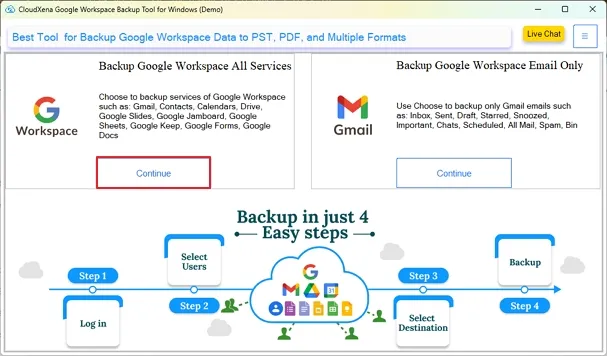
- To start, install and launch the CloudXena Google Workspace Software on your system.
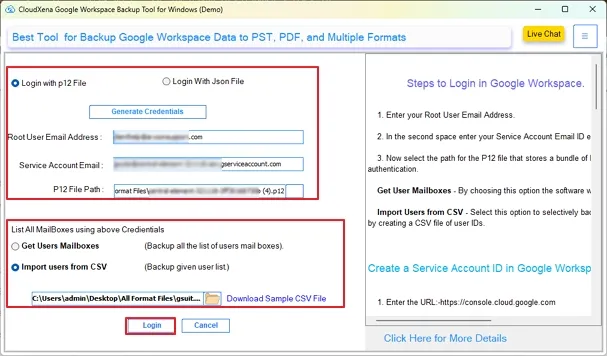
- Now, pick the login method using either the P12 file or the JSON file option. After entering the details, click Login to proceed further.
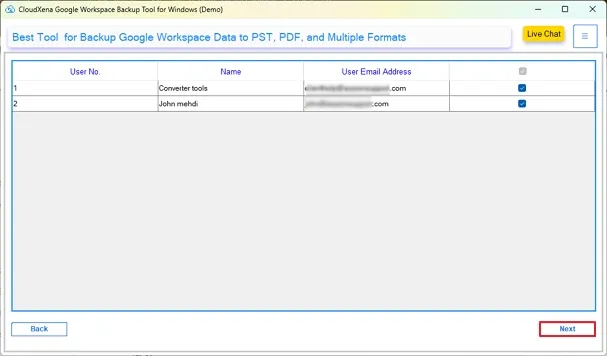
- In a moment, the software will show the available user accounts. From that list, choose the accounts you plan to export.
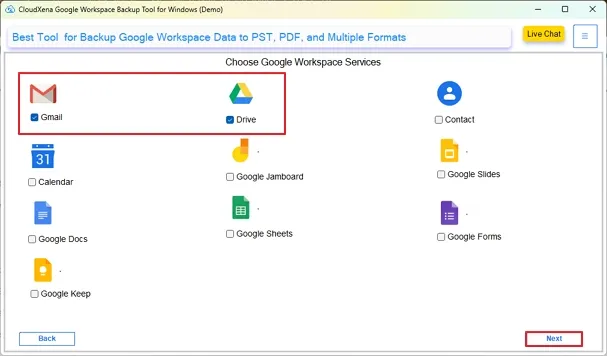
- Then move ahead and select the Google Workspace services needed for the export task.
- On the next window, go to the File Formats section and press Continue.
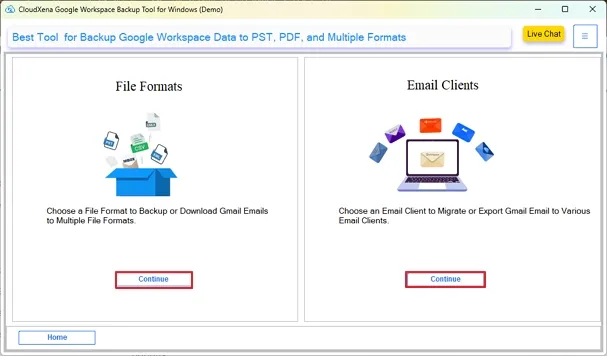
- From the format list, select MSG, and if required, apply the available filters before continuing.

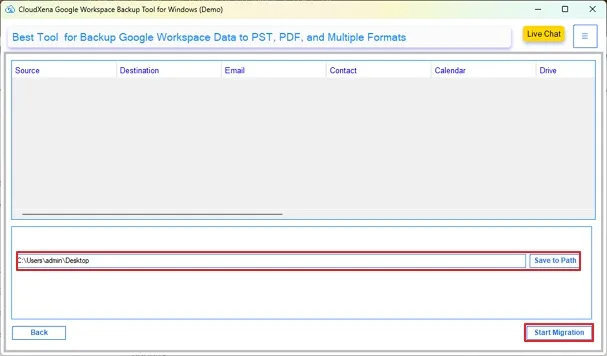
- At the end, choose the Path To Save to define the output location and click Start Migration to export the data.
How Does the Tool Help During Export?
- Saves Google Workspace emails into MSG format directly after account connection.
- Multiple Google Workspace accounts can be processed together during the same export task.
- Email layout, attachments, and mailbox folders stay properly arranged inside exported MSG files.
- Allows users to apply filters before starting the Google Workspace export task.
- Works with Gmail and other supported Google Workspace mailbox data.
- Let users save exported MSG files at any selected local storage location.
- Also helps users export Google Workspace to MBOX and other formats as per their needs.
Business Use Case
A finance company needed old employee emails before an external audit started. Their admin first downloaded Google Takeout data, but only received unreadable output archives. Opening those files inside Outlook became difficult for the legal department later. The company then used CloudXena Google Workspace Backup Wizard to save 70 GB of selected mailboxes’ data in MSG format. Attachments, sender details, and folders remained properly arranged after the export finished.
Ending Note
The process to export Google Workspace to MSG manually usually becomes difficult once the mailbox data starts increasing. Google Takeout mainly generates MBOX archives, which are not easy to access later inside Outlook environments. CloudXena Google Workspace Backup Tool gives a more direct way to get Google Workspace data to MSG while keeping email folders, attachments, and message details properly maintained afterward.
Frequently Asked Questions
Q1. Why does Google Takeout export emails only as MBOX files?
Ans. Google Takeout mainly creates mailbox archives in MBOX format for bulk storage and backup purposes. A dedicated tool helps avoid that extra conversion process by saving Google Workspace emails directly into MSG format afterward.
Q2. Can I convert Google Workspace emails into MSG without Outlook?
Ans. Yes, CloudXena Google Workspace Backup Wizard allows direct export of Google Workspace emails into MSG format without depending on Outlook synchronization. This reduces manual setup work and avoids common IMAP syncing issues seen during large mailbox exports.
Q3. Will attachments remain available inside exported MSG files?
Ans. Yes, a specifically designed tool keeps attachments linked with their respective emails during the MSG export process. Email formatting, sender details, and mailbox structure also remain properly maintained after export completion.
Q4. How do I export only selected Google Workspace emails into MSG?
Ans. CloudXena Google Workspace Backup Software provides advanced filtering options before export starts. Users can apply date-range and mailbox filters to export only selected Google Workspace emails into MSG format instead of processing complete accounts.
Q5. Why does Outlook freeze during large Gmail MSG exports?
Ans. Outlook usually struggles during large IMAP synchronization tasks involving heavy Gmail mailboxes. CloudXena Google Workspace Backup Wizard reduces that dependency by exporting Google Workspace emails directly into MSG without repeated Outlook syncing operations.
Q6. Can I export multiple Google Workspace accounts into MSG together?
Ans. Yes, an automated solution like Google Workspace Backup Tool supports processing multiple Google Workspace accounts during the same export task. This helps administrators avoid repeating the same mailbox export procedure account by account manually.
Q7. Do exported MSG files preserve mailbox folder hierarchy?
Ans. Yes, CloudXena Google Workspace Export Tool keeps mailbox folders arranged in the same hierarchy during MSG export. Attachments, email formatting, and message properties also remain properly preserved after the export process finishes.
About The Author:

I, Simran Bhatia am a Technical Content Writer specializing in data management, email migration, and data recovery IT solutions. My focus is on simplifying complex processes into clear, practical guides that combine technical accuracy with real-world value for IT admins, decision-makers, and everyday users. For me, writing is not just about explaining technology, it’s about making it accessible, reliable, and valuable for readers.
Related Post


