


-
Written By Simran Bhatia
-
Updated on May 28th, 2026
Export Google Workspace (G Suite) to PDF: Best Methods
User Query:
Our company runs on Google Workspace, and the legal team needs email records in PDF format for an upcoming audit. Google Takeout gives MBOX files that nobody on the team can actually open or use. Have tried a few workarounds, but formatting breaks every time. What actually works to export Google Workspace data to PDF with attachments and formatting intact?
Summary: Google Workspace holds business-critical emails, documents, and communication history that compliance teams need in a readable and shareable format. PDF is the standard format for legal records and offline documentation, and there is no native one-click way to export Google Workspace to PDF. Manual workarounds through Google Takeout produce MBOX files that most teams cannot use directly. This blog covers manual methods and the CloudXena Google Workspace Backup Tool as the direct solution.
Quick Answer
How do I export Google Workspace emails to PDF for compliance or offline access?
Google Takeout exports Workspace data but outputs MBOX files that most compliance teams cannot use directly. Printing emails one by one works for a handful, but breaks down completely at any real volume. CloudXena Google Workspace Backup Utility connects directly to Google Workspace and exports emails, attachments, and folder structure to PDF in one run. Formatting stays intact, and bulk accounts process together without repeating the setup for each one.
What Is The DIY Approach To Export G Suite to PDF?
Only one manual route exists, and it runs separately for each Google service. It is time-consuming and gets repetitive fast across multiple accounts. Work through each service below in order:
For Emails
- Open Gmail and browse to the inbox or folder holding the emails you need.
- Select and open the emails you want to get as a PDF.
- Click the three-dot icon in the top right corner and choose Print.
- Set the destination to Save as PDF and adjust any print settings needed.
- Hit Print, and when the Save As dialog opens, pick a folder location.
- Click Save, and the email lands on your system as a PDF file.
For Docs, Sheets, and Slides
- Open the relevant Google application — Docs, Sheets, or Slides — and select the file.
- Click File > Download from the top menu and choose PDF Document from the list.
- Pick a destination folder, and the file saves directly as a PDF on your system.
For Calendar
- To start, open Google Calendar and switch to the view you want to export.
- Press Ctrl + P on your keyboard to open the print dialog.
- In the end, set the destination to Save as PDF and click Print, then Save to finish.
For Drive
- At first, open Google Drive and find the files you need to convert to PDF.
- Moving ahead, select them, right-click, and choose Download from the menu.
- Files download in their native formats — DOCX, XLSX, PPTX, depending on the file type.
- Once downloaded, use a converter tool to change each file from its original format to PDF.
For Contacts
- Open Google Contacts in a browser and select the contacts you want to export.
- Further, click Export from the left sidebar and choose either CSV or VCF as the format.
- Once downloaded, use a PDF converter to change the exported file into PDF format.
This covers the full manual process to export G Suite emails to PDF across every service. That said, this approach carries serious limitations worth knowing before depending on it at any real scale.
What Are The Problems With Manual Approaches?
- Gmail emails need to be saved one after another manually.
- Google Takeout gives MBOX archives, not readable PDF files.
- Attachments sometimes break during manual conversion work.
- Folder arrangement becomes messy after multiple exports.
- Large exports take hours to organize properly later.
- Different Google services follow completely different export steps.
Professional Solution To Export Google Workspace to PDF
Manual export runs separately for every service and every user, which is not viable for any team under a compliance deadline. CloudXena Google Workspace Backup Software connects through secure OAuth authentication and exports Gmail, Drive, Contacts, Calendar, Docs, and Sheets to PDF in one run. Folder hierarchy stays intact, attachments come through correctly, and multi-account bulk exports process together without repeating the steps.
Procedure To Save Google Workspace Data into PDF:
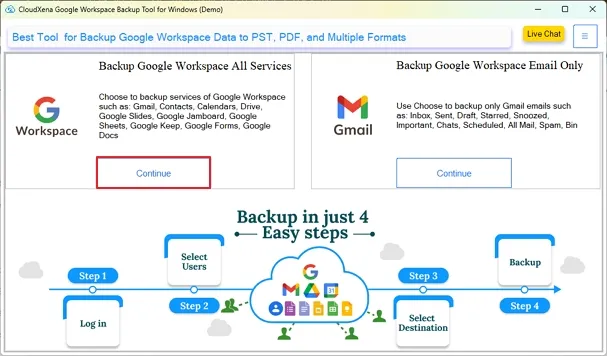
- Install and run the CloudXena Google Workspace Backup Wizard on the computer first. Once the software opens, click Continue.
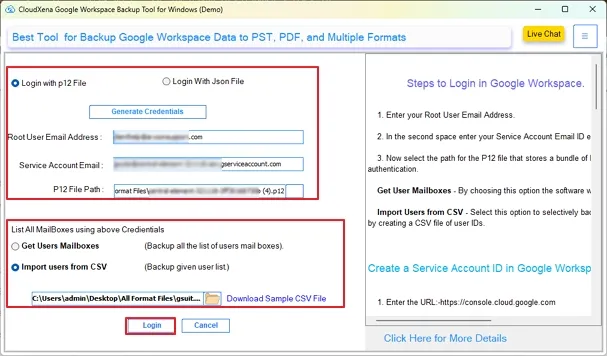
- Further, choose the login option using either a P12 file or a JSON file. Fill in the required details and press Login.
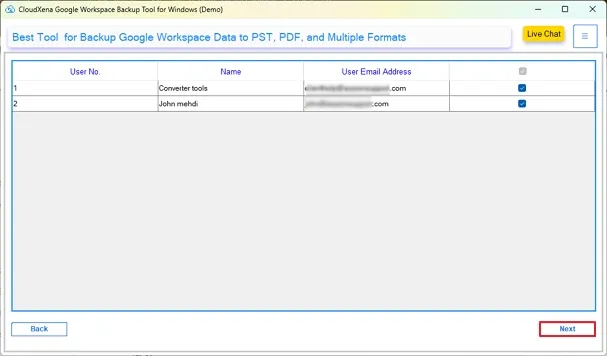
- The software will display the available user accounts afterward. Select the accounts you want to export.
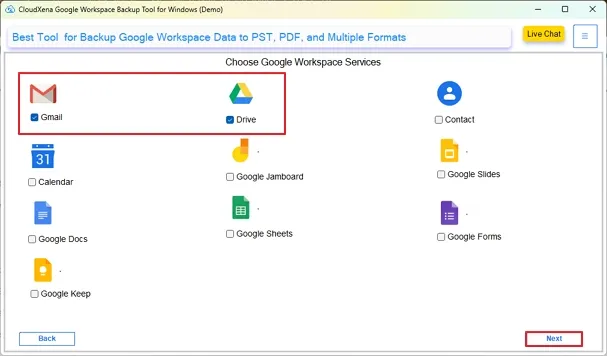
- Now select the Google Workspace services from which data needs to be exported.
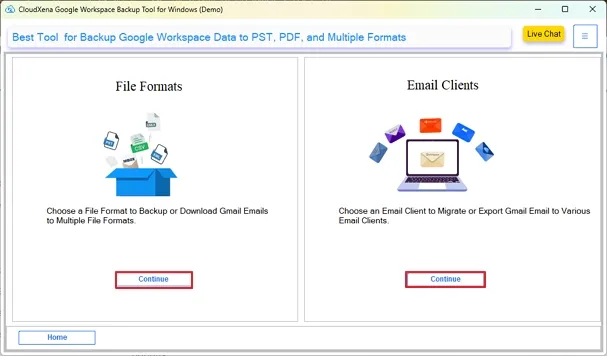
- After reaching the next screen, click Continue under the File Formats section.
- After that, choose PDF from the file format list and apply filters if required.

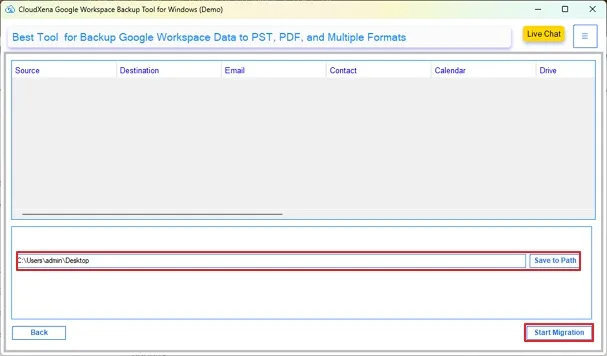
- In the final step, specify the Path To Save and click Start Migration.
Why Use CloudXena Google Workspace Backup Tool?
- The software exports Gmail emails directly into PDF without generating output as MBOX archives first.
- Supports multiple Google Workspace accounts in a single export process.
- Keeps email formatting and attachments properly preserved inside exported PDF files.
- Allows you to apply required filters before you start the export process.
- Works with Gmail, Drive, Contacts, Calendar, and other Google Workspace services.
- Saves exported PDF files at any selected local storage location.
Real Case Scenario
A legal consulting company needed PDF copies of nearly 18,000 Google Workspace emails before an internal compliance review. Initially, the team tried Google Takeout, but the export arrived in large MBOX archives that most staff members could not open properly.
The manual PDF approach also became unrealistic because employees were saving emails individually for hours. The company used CloudXena Google Workspace Backup Wizard to export mailbox data directly into PDF format. The tool helped in clean output with preserved folder structure and complete data safety.
Final Words
Most teams realize the problem only after the export starts. Gmail emails save separately, Drive files download in different formats, and Google Takeout leaves behind MBOX archives that many users cannot even open properly.
CloudXena Google Workspace Backup Tool avoids that mess by helping users to export Google Workspace to PDF smoothly. Emails, attachments, and mailbox folders stay properly arranged, so the final records are actually usable during audits, legal reviews, or long-term storage
Frequently Asked Questions
Q1. How can I export all Google Workspace emails to PDF together?
Ans. Google Takeout does not create direct PDF files for emails. CloudXena Google Workspace Backup Tool exports multiple mailbox accounts together into a PDF without saving messages individually.
Q2. Does Google Takeout export emails directly into PDF files?
Ans. No. Google Takeout generates MBOX archives instead of readable PDF documents. Users still need additional software or conversion methods to make the exported emails accessible in PDF format.
Q3. Can I preserve attachments while exporting Google Workspace emails to PDF?
Ans. Yes. CloudXena Backup Wizard keeps attachments linked with exported emails during PDF conversion, which helps preserve complete mailbox records for audits or offline documentation purposes.
Q4. Why does manual Google Workspace PDF export take so much time?
Ans. Manual export becomes repetitive because Gmail, Drive, Calendar, and Contacts all follow separate workflows. Saving emails individually also increases the workload during large export operations later.
Q5. Is there a way to export former employee mailboxes into a PDF for compliance?
Ans. Yes. Many organizations use CloudXena Google Workspace Backup Wizard to preserve former employee mailbox records in PDF format for legal review, compliance storage, or internal documentation needs.
Q6. Why do Google Sheets and Docs lose formatting after PDF conversion?
Ans. Formatting problems usually appear because margins, scaling, or layouts change during manual conversion. CloudXena Google Workspace Backup Tool helps preserve document structure more consistently during PDF export.
Q7. Can multiple Google Workspace accounts export into a PDF together?
Ans. Yes. CloudXena Workspace Backup Tool supports bulk account export, which helps administrators process multiple mailboxes together instead of repeating setup steps separately for every account.
Q8. How do teams manage large Google Workspace PDF exports during audits?
Ans. Most organizations avoid manual exports during audits because managing thousands of files becomes difficult later. CloudXena Workspace Backup Tool simplifies bulk PDF export and keeps records easier to organize afterward.
About The Author:

I, Simran Bhatia am a Technical Content Writer specializing in data management, email migration, and data recovery IT solutions. My focus is on simplifying complex processes into clear, practical guides that combine technical accuracy with real-world value for IT admins, decision-makers, and everyday users. For me, writing is not just about explaining technology, it’s about making it accessible, reliable, and valuable for readers.
Related Post


