


-
Written By Simran Bhatia
-
Updated on May 23rd, 2026
Best Methods to Export Google Workspace Email to PST
User Query:
I need to backup multiple employee mailboxes from Google Workspace into PST format before we migrate. Google Takeout does not export PST directly, and I can not find anything in the Admin Console either. Is there any reliable method or free tool that preserves folder structure and email metadata?
Summary: Switching from Google Workspace to Outlook isn’t always as simple as it sounds. A lot of users face difficulties trying to figure out where to even begin. That’s exactly why we put this guide together. We will walk you through some working methods to export Google Workspace email to PST. The guide also covered the CloudXena Google Workspace Backup Tool, which makes the migration process smooth and risk-free for users.
Quick Answer
How do I move Google Workspace emails into PST format without missing mailbox data?
Outlook can export Google Workspace mailboxes into PST files after IMAP syncing finishes, but bigger accounts often create incomplete exports or folder issues. CloudXena Google Workspace Backup Wizard allows users to move their workspace data to the PST format in a simple and secure way. The software preserves the folder structure along with attachments and ensures zero data loss.
What Is The Manual Way To Export Google Workspace to PST?
If you want to export data to PST from Google Workspace, you can push G Suite data into PST either through Outlook or Google’s own export options. Both ways are simple once you understand the flow, and each one is laid out below with straightforward, click‑by‑click steps.
Export Google Workspace Data to PST (Outlook Method)
- Start by making sure Google Workspace is ready to sync with Outlook.
- Sign in to your Google Workspace (G Suite) account, and after that, tap on All Settings.
- Go to the Forwarding and POP/IMAP tab and turn on Enable IMAP.
- Click Save, then double‑check that IMAP is fully enabled for your account.
- Now move to Outlook: Open Outlook and go to File → Add Account.
- Enter your Google Workspace (G Suite) email and password when prompted.
- Complete the setup so the account syncs via IMAP. Wait for all folders and messages to load.
- Once synced, you can export your Google Workspace mailbox to PST:
- In Outlook, choose File → Open & Export → Import/Export option.
- In the Import and Export Wizard, choose the Export to a File option and hit Next.
- Choose Outlook Data File (.pst) as the format and click Next again.
- Select the G Suite mailbox or the specific folder you want to export.
- Click Next, choose whether to include subfolders, and apply any duplicate filter if needed.
- Click Browse to set a local folder where the PST will be saved.
- Optionally set a password for the PST, or skip it if you don’t need encryption.
- In the end, click Finish to start the export.
Outlook will copy all selected Google Workspace emails into a PST file on your local drive. This completes your steps to export Google Workspace email to PST using the Outlook method.
Export Workspace Account Data Using Google Export Service
This method does not need Outlook at all and uses Google’s built‑in export tools.
- Open any browser and log in to the Google Workspace Admin Console.
- On the dashboard, go to Accounts and Tools, then click Data Export.
- Click Set up a new export and set a name plus the scope (you can pick one user or a group).
- Configure any extra options you need, then click Start Export.
- Once the export is ready:
- Click Actions and then View Archive to see the generated files.
- Download the ZIP file that appears; inside you’ll find one or more MBOX files.
At this point, the data is not yet in PST format. You’ll need to convert the MBOX file to PST using a converter tool.
What Are the Drawbacks of Manual Export?
- Outlook syncing becomes unreliable with larger Workspace mailboxes.
- Google export utility saves data only in MBOX format.
- PST conversion needs additional tools after the Google export finishes.
- Outlook export can disturb the original mailbox structure.
- Bigger Workspace accounts usually end up creating very large PST backups.
How Do Professionals Export Workspace Mailboxes to PST?
Exporting Workspace mailboxes manually usually takes longer than expected. CloudXena Google Workspace Backup Tool simplifies the process of moving Google Workspace emails into PST format. Users can export mailbox data directly while keeping folders and attachments properly arranged. The software additionally supports multiple mailbox export operations from a single dashboard.
Follow The Procedure Below To Export Google Workspace Mailbox to PST:
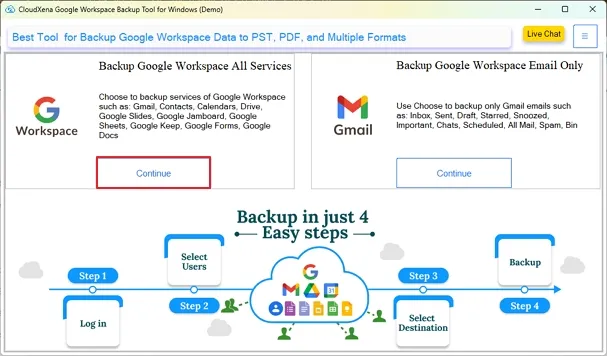
- To start, download and launch CloudXena Google Workspace Backup Software on your system and tap on Continue under all services.
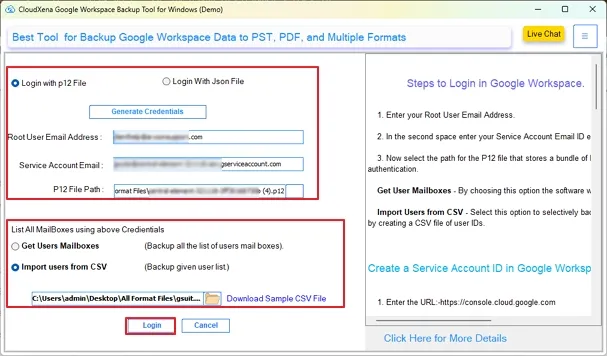
- Further, choose to log in with p12 or a JSON file and enter details, then click Login.
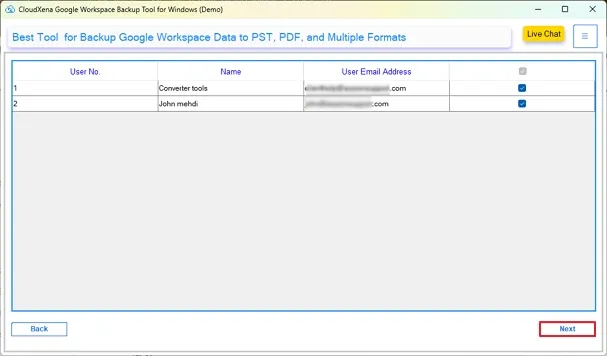
- After that, select the User Accounts whose workspace data you want to get in PST.
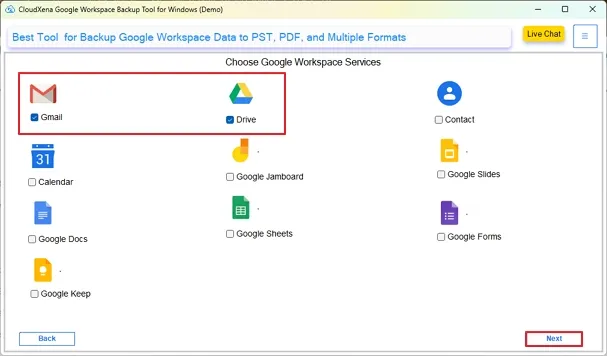
- Now, tick all the Google Workspace services whose data you want to convert. Then, click Next.
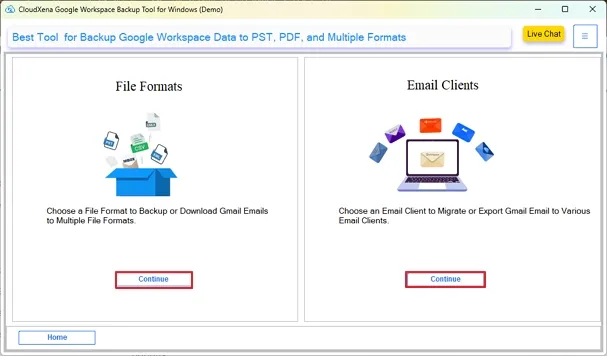
- On the next screen, click Continue under the File Format option.
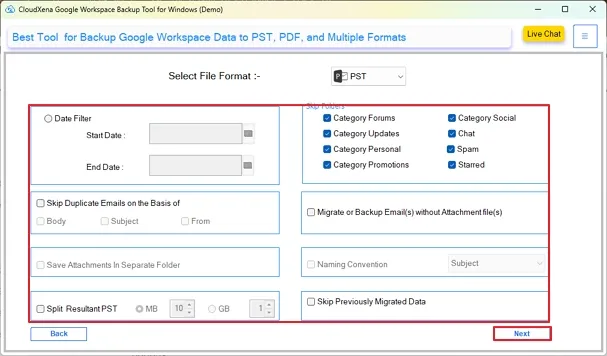
- Moving ahead, choose PST in the Select File Format option and apply additional filters for selective backup.
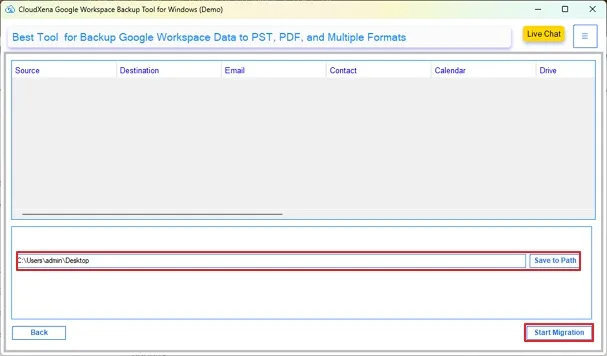
- Lastly, browse and specify the destination path for your resultant file and click Start Migration to initiate the process.
What Makes This Tool A Prominent Choice?
- Converts Workspace mailbox emails into Outlook PST files.
- Admins can handle multiple mailbox exports simultaneously.
- Existing mailbox folder arrangement stays properly maintained.
- Export includes email attachments with mailbox content.
- Selective mailbox export works through filter options.
- Local systems store generated PST backup files directly.
Real Life Example
Mark works as an IT admin at a mid-sized marketing firm in New York. Last month, his company decided to move away from Google Workspace and shift everything to Microsoft Outlook. He tried exporting through Outlook, but the mailbox structure was disrupted in the output file.
Later, he tried CloudXena Google Workspace Wizard to save G Suite emails into PST. He could convert 40 mailboxes at once with no data loss. The software ensured that the format structure, along with attachments, was intact and also provided complete data safety.
To Wrap Up
Mailbox exports usually become stressful once Workspace data starts growing across multiple accounts. Manual PST creation works, but Outlook sync delays and oversized mailboxes often create avoidable problems later. CloudXena Google Workspace Backup Utility gives users a more direct way to export Google Workspace email to PST while keeping mailbox folders and attachments available after export. Local PST copies also help teams access older mailbox records without depending on active Workspace accounts.
Frequently Asked Questions
Q1. Does Google Data Export create PST files directly from Workspace accounts?
Ans. No, Google Data Export usually downloads mailbox data in MBOX format instead of PST. Users later need another conversion step for Outlook access. CloudXena Google Workspace Backup Tool exports Workspace mailboxes directly into PST without intermediate MBOX conversion.
Q2. Why do larger Google Workspace mailboxes slow down during PST export?
Ans. Larger mailboxes increase Outlook sync time and sometimes interrupt PST generation midway. The CloudXena Workspace Backup Software handles larger mailbox exports more smoothly because it connects directly with Workspace accounts during export processing.
Q3. Can I keep mailbox labels and folder structure after PST export?
Ans. Yes, the mailbox arrangement can remain available after export if the process completes correctly. CloudXena Google Workspace Migration Tool preserves mailbox folders, email hierarchy, and attachments during PST creation for easier Outlook access later.
Q4. Is Outlook mandatory for Google Workspace to PST conversion?
Ans. No, Outlook is not always required. Many users avoid Outlook syncing because larger Workspace accounts often create delays or incomplete downloads. CloudXena Google Workspace Backup Tool exports Workspace mailbox data directly into PST through its own interface.
Q5. How do companies archive former employee Workspace mailboxes into PST files?
Ans. Many organizations create PST copies before removing inactive employee accounts from Google Workspace. CloudXena Workspace Email Backup Tool helps admins export mailbox data locally so older emails, attachments, and records remain accessible after account closure.
About The Author:

I, Simran Bhatia am a Technical Content Writer specializing in data management, email migration, and data recovery IT solutions. My focus is on simplifying complex processes into clear, practical guides that combine technical accuracy with real-world value for IT admins, decision-makers, and everyday users. For me, writing is not just about explaining technology, it’s about making it accessible, reliable, and valuable for readers.
Related Post


