


-
Written By Simran Bhatia
-
Updated on June 5th, 2026
How to Import PST to iCloud Mail— Emails, Contacts & Calendar(2026)
User Query: “I’m planning to move from Outlook to iCloud Mail, but my PST file has years of emails, contacts, and calendar data. I need a safe way to import PST to iCloud on Mac without losing anything or breaking folder structure during transfer.”
— James Carter, London
Summary: People are now opting for iCloud rather than Outlook due to its smooth compatibility and easy accessibility for storing information. But PST files cannot be transferred directly to iCloud; hence, some means must be found to open PST in iCloud. Often, problems arise when you use a manual approach to import emails, contacts, and calendar appointments into iCloud. The CloudXena PST Converter Tool can help to resolve these problems easily by transferring PST files to iCloud. In this guide, we have covered a manual approach and a reliable tool-based solution.
Can you import PST to iCloud without Outlook?
Certainly, it is possible to migrate PST files to iCloud without installing Outlook, but not instantly. PST files are not supported by iCloud natively. You have to prepare your data before moving it to iCloud. With CloudXena PST File Converter, you are able to transfer your emails and other data to iCloud without using Outlook.
Can You Upload PST to iCloud Mail Without a Tool?
In order to migrate the PST files to iCloud Mail manually, first, the PST needs to be imported into Microsoft Outlook. Subsequently, the synchronization process will need to be carried out through the service provided by Apple for Outlook. This approach can be used in small or simple migration cases from PST to iCloud mail, although it does not appear very efficient for large files.
Manual Procedure to Import Outlook PST to iCloud Mail:
- Open the Outlook application and import the PST file into your existing Outlook account.
- Install the iCloud for Windows program on your system.
- Log in to the iCloud application using your Apple ID.
- Activate syncing of Mail, Contacts, Calendar, and Tasks from iCloud settings.
- Ensure that your Outlook account is linked successfully with iCloud services once the syncing is complete.
- Drag and drop emails from PST imported folders to iCloud-enabled Outlook folders.
- Wait until the selected data gets synced to iCloud servers from Outlook.
- Test the migration process by accessing the iCloud Mail application.
What Went Wrong with the Manual Approach?
Despite the fact that the manual method can assist to import PST file to iCloud mail, this approach is not guaranteed to work with all people. The method involves heavy dependence on synchronization of Outlook and iCloud accounts, which may cause various problems when migrating data.
Some of the most common disadvantages are as follows:
- This method consumes a lot of time due to the size of PST files.
- Installation of Outlook is necessary.
- Proper Outlook configuration is important.
- PST files cannot be used with iCloud Mail.
- Contacts and calendar entries may not synchronize correctly.
- Partial synchronization can take place.
- Batch PST file migration is impossible.
Due to this set of problems, the manual method may work perfectly fine for some but fail to deliver desirable results to others.
What Is The Hassle-Free Way to Import PST to iCloud Mail?
Usually, the manual process may not be efficient or convenient because it is slow and inefficient in handling large PST files.
The CloudXena PST Converter Tool offers a convenient alternative that allows importing PST to iCloud Mail by bypassing the need to perform complicated procedures manually. The converter is created to facilitate the migration process with complete data safety and zero data loss. In order to import bulk PST files to iCloud, you just have to go through fewer actions using the converter and minimize the risk of making any mistakes. You can also import PST to Hotmail using this specific utility.
Furthermore, there are other features offered by the software that make PST migration to iCloud easy and fast.
- Direct migration of PST files is possible to iCloud Mail.
- Simultaneous transfer of emails, contacts, and appointments takes place.
- The original PST folder structure is retained during transfer.
- Selective transfer of important data is provided.
- Works effectively even for large PST files without any performance impact.
Also allows you to import PST to Zoho Mail and other email clients.
Steps to Import PST to iCloud Without Outlook :
- To start, download and run the PST File Converter Tool on your system.
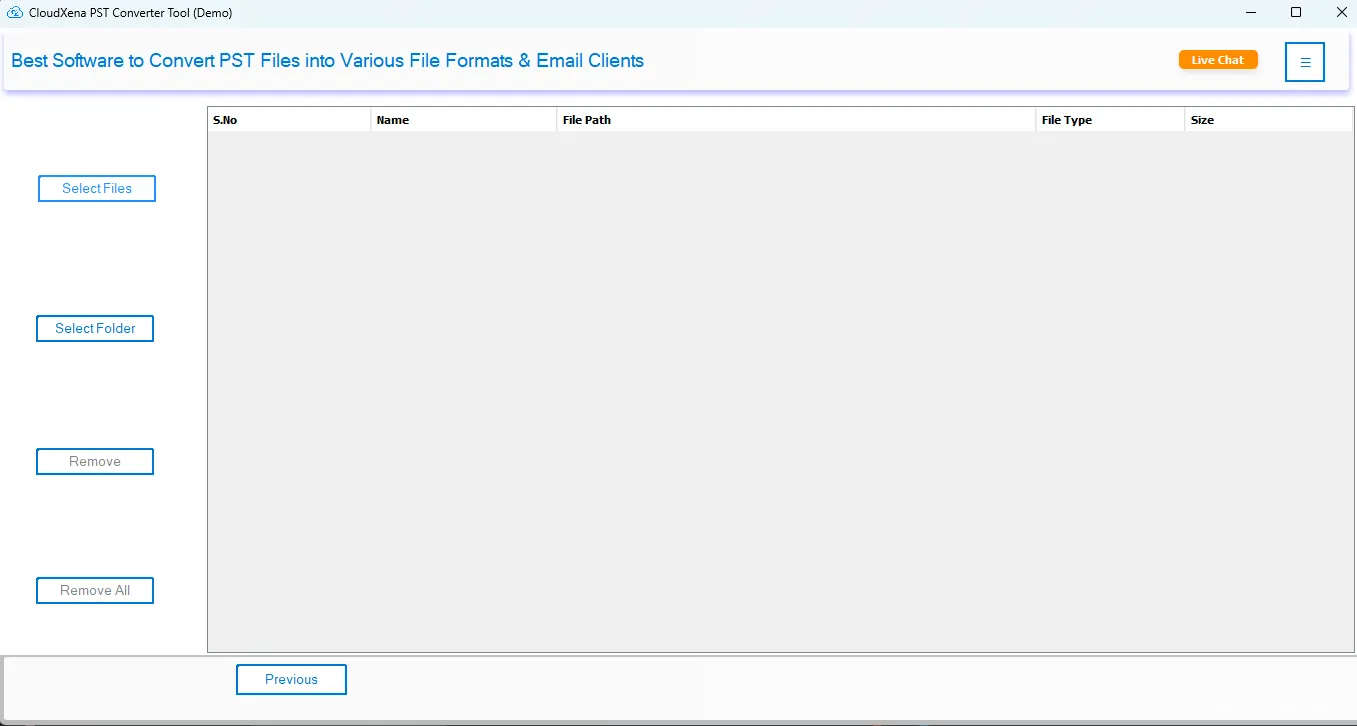
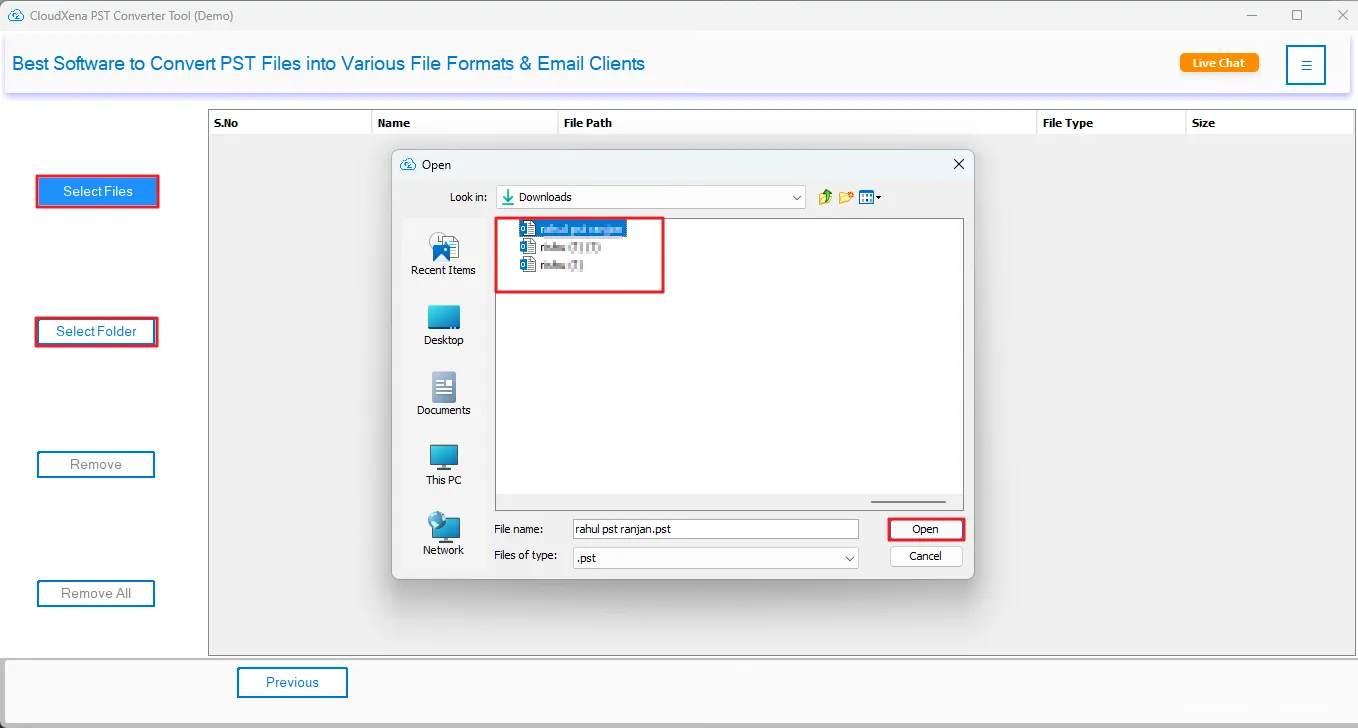
- After that, tap on Select File or Select Folder to add your PST files to the tool.
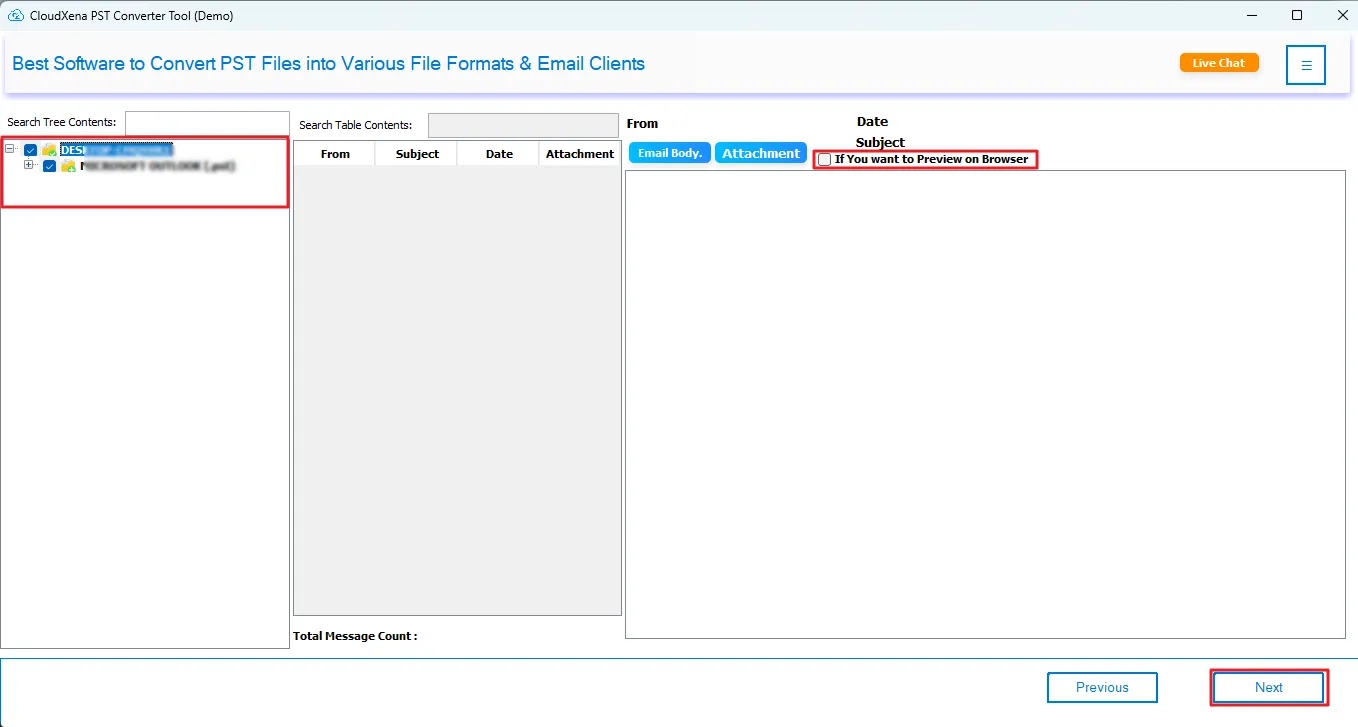
- Further, expand the tree hierarchy in the left panel, and you can preview the files, then select the files to import.
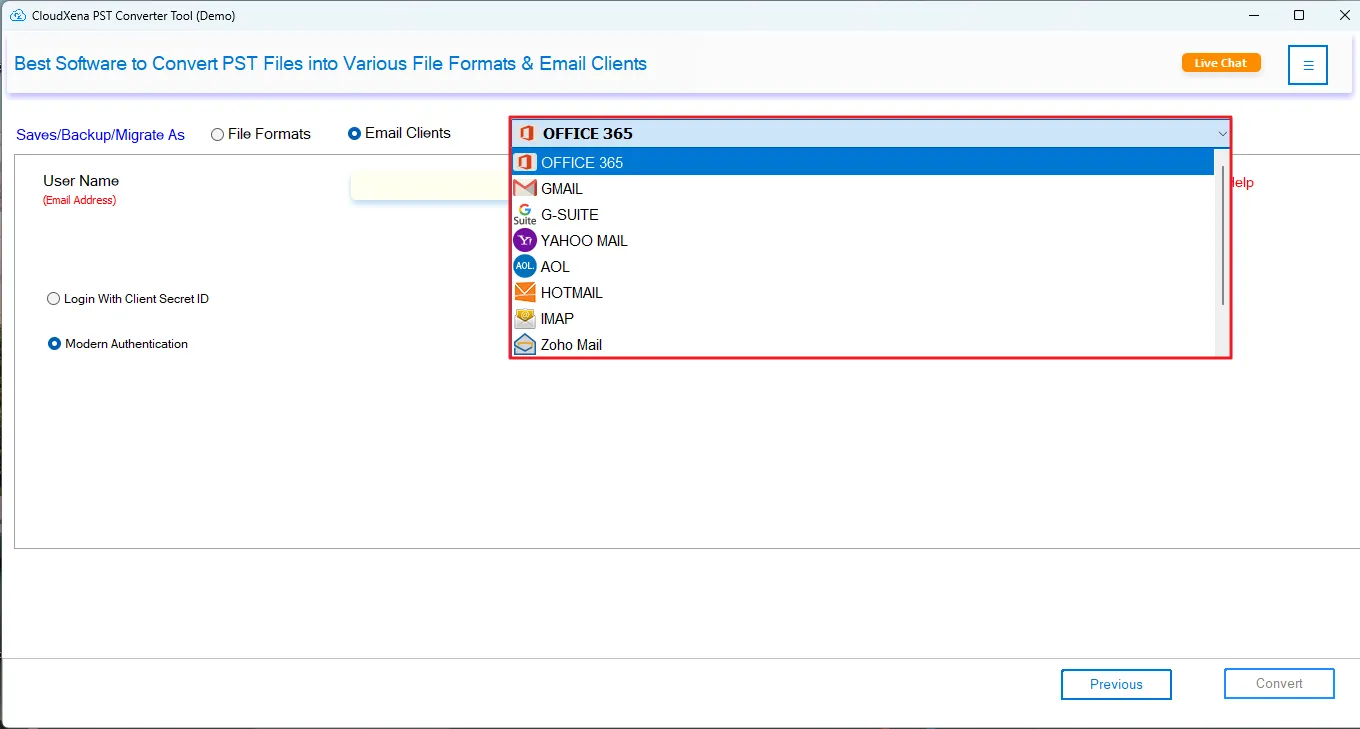
- Moving ahead, select iCloud in the drop-down list and authenticate with the correct credentials.
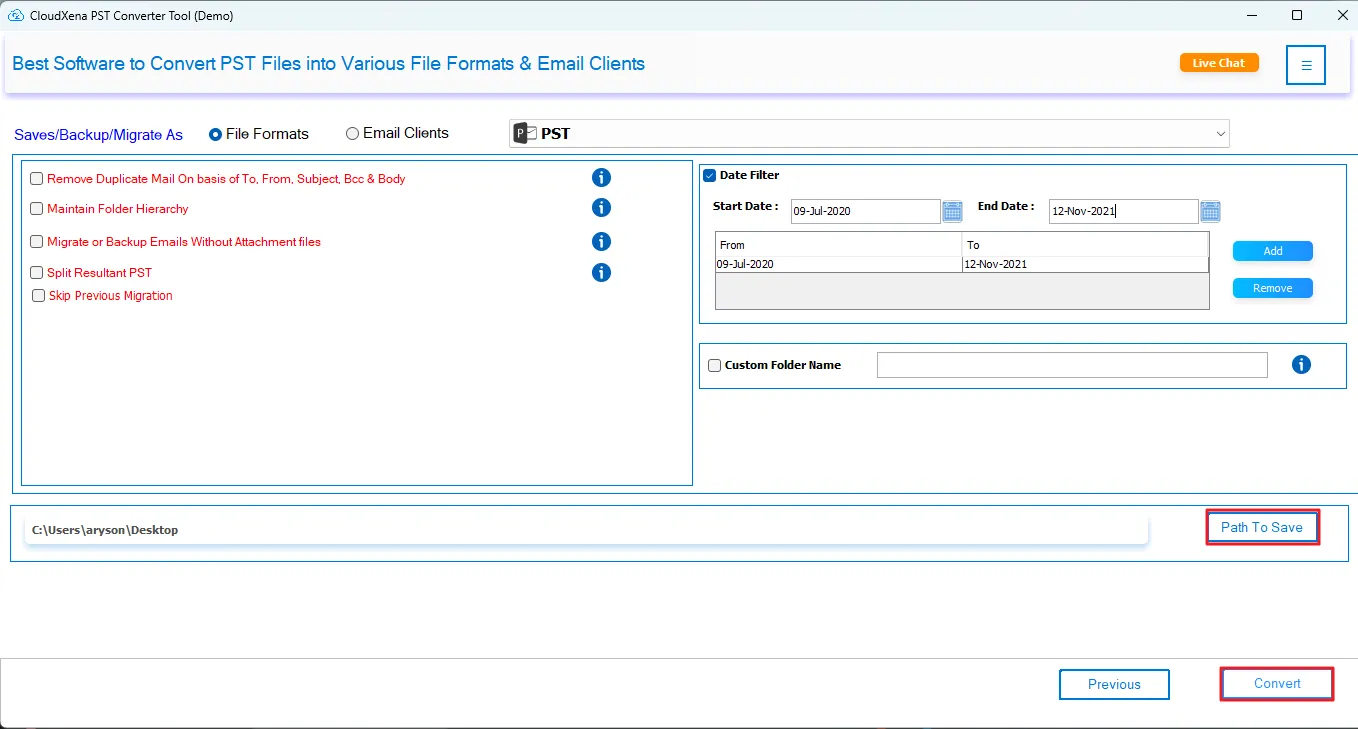
- In the end, choose from the filters to apply and specify the output location. Then, tap on the Convert button on the PST to iCloud migration tool.
Real Life Example :
An IT department with limited members had to migrate some 30,000 emails from Outlook PST files to iCloud Mail accounts. The automatic synchronization process of these emails via Outlook became problematic because of the slow nature and incompleteness of the process. What they required was a reliable solution to migrate PST to iCloud without affecting the folders. The CloudXena PST Converter Software assisted in successfully carrying out the task at once. They could transfer all the data to iCloud Mail with minimal downtime and no data loss. Also, the tool allows to import PST to Yahoo Mail along with attachments.
To Wrap Up
Transfer of Outlook PST files to iCloud is not always an easy process, even more so for huge files or files with different kinds of data. While manual ways of transferring may prove effective on a small scale, these often pose challenges related to speed and synchronization problems. The CloudXena PST File Converter Tool, on the other hand, offers a more reliable way to import PST to iCloud. You can choose the effective way for you according to your migration needs.
Frequently Asked Questions
Q1. How do I import PST calendar events to iCloud?
Ans. iCloud does not support direct PST file import. You need a PST migration tool like CloudXena PST Converter to extract calendar data and safely transfer it to iCloud along with emails, contacts, and other mailbox items.
Q2. How to open a PST file in iCloud Mail?
Ans. PST files cannot be directly opened in iCloud Mail because they are Outlook-specific formats. You must first convert PST into a compatible format using a PST migration tool, then import the converted data into iCloud.
Q3. What happens to PST attachments after import to iCloud?
Ans. When migration is done using a reliable PST converter tool, all attachments remain fully intact. The tool ensures emails, embedded files, and documents are transferred accurately without alteration, corruption, or loss during the migration process
Q4. Can I import PST to iCloud on a Mac?
Ans. Yes, Mac users can migrate PST files to iCloud using a compatible PST converter tool like CloudXena utility. It helps transfer mailbox data smoothly on macOS while maintaining folder structure, attachments, and email formatting.
Q5. How long does it take to import a PST file to iCloud?
Ans. The migration time depends on PST file size, number of emails, and system performance. A dedicated PST migration tool significantly reduces processing time compared to manual methods and ensures faster, more reliable transfer.
Q6. Can I import PST to iCloud in bulk without data loss?
Ans. Yes, CloudXena PST converter tool supports bulk migration of multiple PST files at once. They maintain data integrity, preserve folder hierarchy, and ensure no emails or attachments are lost during the entire migration process.
Q7. Will file attachments be preserved when importing PST to iCloud?
Ans. Yes, trusted PST migration tools ensure complete preservation of attachments during transfer. Emails are migrated along with embedded files, images, and documents without any modification, ensuring accurate and reliable data migration.
Q8. Can I import multiple PST files to iCloud at once?
Ans. Manual methods do not support bulk PST import, but professional PST converter tools allow multiple PST files to be migrated simultaneously. This saves time and ensures consistent, error-free transfer of all mailbox data.
About The Author:

I, Simran Bhatia am a Technical Content Writer specializing in data management, email migration, and data recovery IT solutions. My focus is on simplifying complex processes into clear, practical guides that combine technical accuracy with real-world value for IT admins, decision-makers, and everyday users. For me, writing is not just about explaining technology, it’s about making it accessible, reliable, and valuable for readers.
Related Post


