- Software Working Process
- User Interface
Software Working Process
1: Launch the CloudXena OLM to Office 365 Migration Tool on your system with administrator privileges to ensure proper access and smooth functioning.
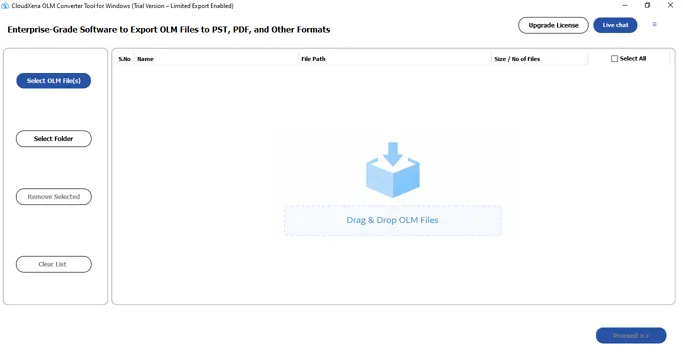
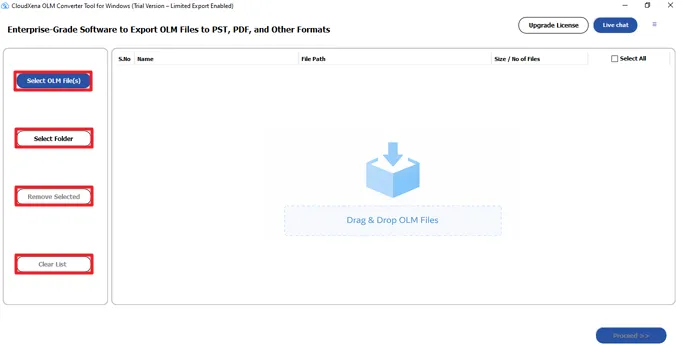
2: Go to the File Selection section in the tool. Click Select OLM File(s) to add individual files, or choose Select Folder to load multiple OLM files at once.
If you add the wrong files, use Remove Selected to delete specific items or click Clear List to remove all files from the list.
If you accidentally add the wrong files, you can use Remove Selected to delete specific items or click Clear List to remove everything from the list.
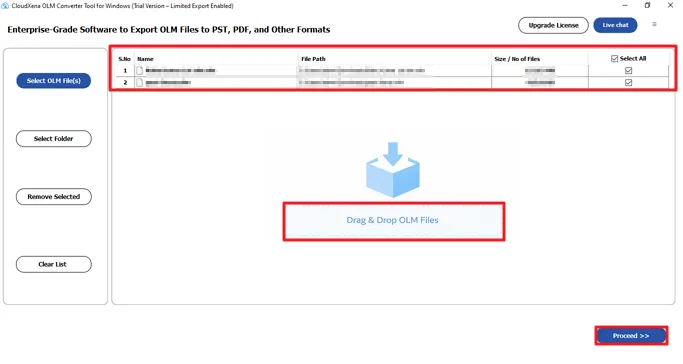
3: Browse your system and select the required OLM files or folders, then click Open to load them into the tool. You can also drag and drop the OLM files directly into the software for faster access. Once the files are added, click Proceed to move to the next step.
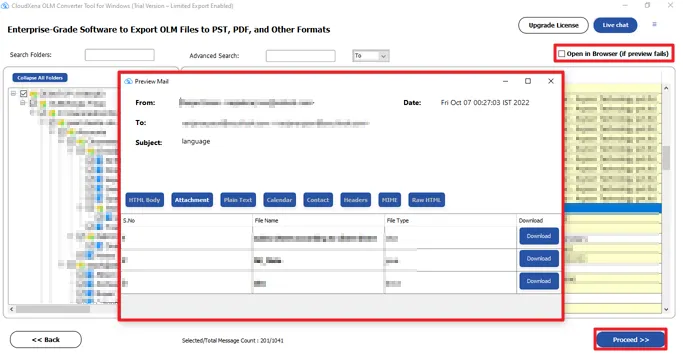
4: Choose the required files and folders from the expanded tree view. If the list looks cluttered, click Collapse All Folders to simplify it.
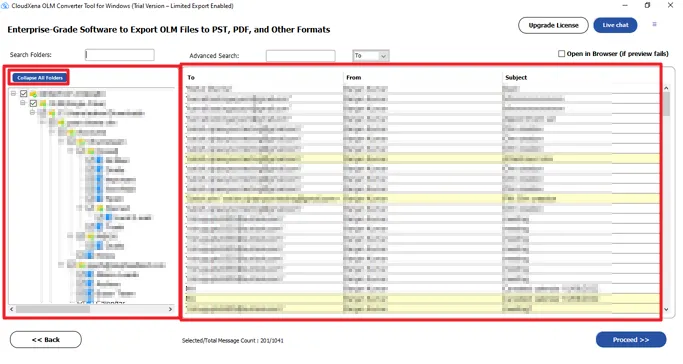
5: Use the advanced preview panel to check the data from the added files within the tool. If the preview doesn’t display correctly, enable the Open in browser (if preview fails) option to view your OLM data online. Then click Proceed to go to the next step.
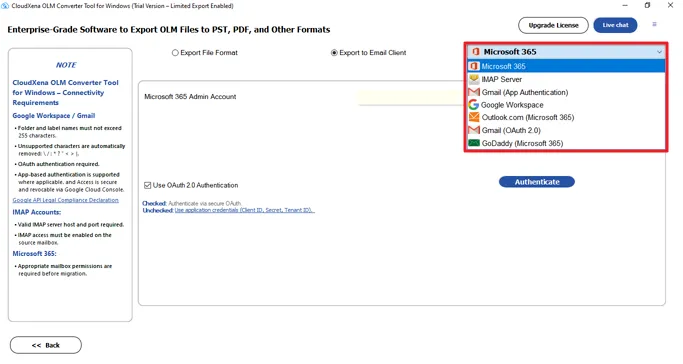
6: Go to Export to Email Client, open the dropdown, and choose Microsoft 365 from the list.
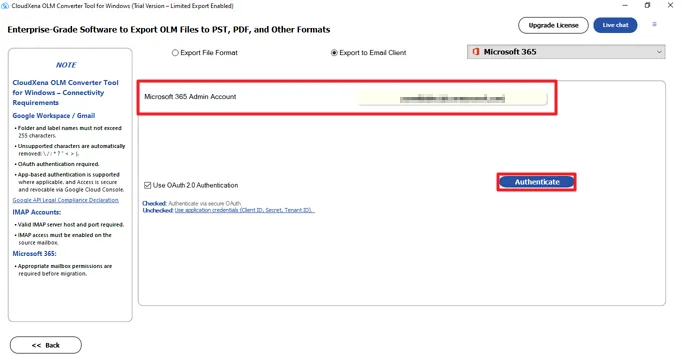
7: Now, use the respective credentials to sign in to Office 365 and click the Authenticate button.
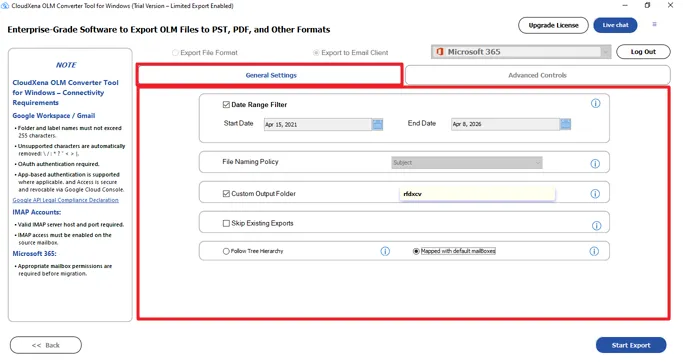
8: The General Settings section is where you control how your OLM data will be processed during export. It gives you a few useful options to customize the output:
- Date Range Filter: Lets you export emails within a specific time period by setting start and end dates.
- File Naming Policy: Allows you to define how the exported files will be named (e.g., subject-based naming).
- Custom Output Folder: Choose a specific name on your system to save the converted files.
- Skip Existing Exports: Prevents duplicate exports by skipping files that have already been processed.
- Folder Tree Hierarchy: Keeps the original folder structure exactly as it is, so your emails stay organized in the same way after export.
- Mapped with Default Mailbox: Moves all data into the default mailbox structure of the selected email client instead of preserving the original folder layout.
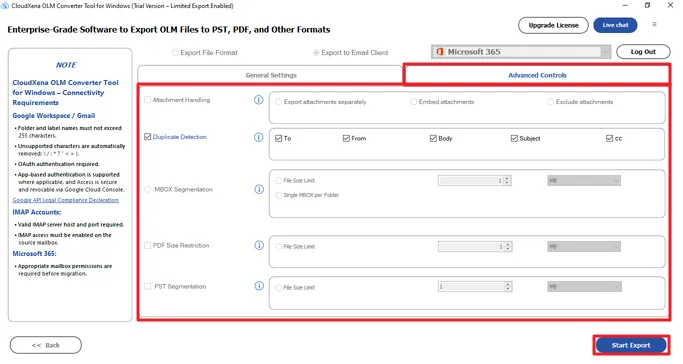
9: This Advanced Control section allows you to apply more detailed settings to control the export process.
- Attachment Handling: Choose how you want to manage attachments during export:
- Export attachments separately.
- Embed attachments within emails.
- Exclude attachments completely.
You can further customize the export process with these additional options:
- MBOX Segmentation allows you to break large MBOX files into smaller parts by setting a file size limit or choosing Single MBOX per Folder. This helps in managing large amounts of data more easily.
- PDF Size Restriction lets you control the size of exported PDF files by defining a maximum file size limit, ensuring the output files remain manageable and easy to share.
- Duplicate Detection: Avoid exporting duplicate emails by enabling this option. You can match duplicates based on fields like To, From, Body, Subject, and CC.
- MBOX Segmentation: Split large MBOX files into smaller parts by setting a file size limit, or choose one MBOX per folder.
- PDF Size Restriction: Set a maximum size limit for PDF files generated during export.
- PST Segmentation: Break large PST files into smaller sizes by defining a file size limit, making them easier to manage.
After configuring both General Settings and Advanced Controls, click the Start Export button.
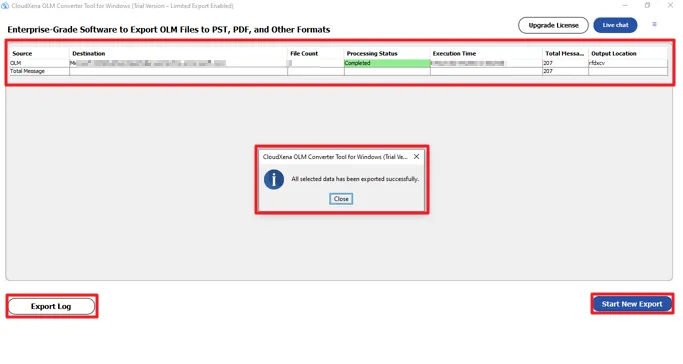
10: Once the process finishes, you’ll see a summary showing details like source, destination, file count, processing status, execution time, total items, and output location. This helps you verify that everything was exported correctly.
A pop-up appears confirming that all selected data has been exported successfully.
Click Export Log to download a detailed report of the entire process for future reference or verification. If you want to perform another conversion, click Start New Export to begin again with new files or settings.
Activate the Software
Installation & Uninstallation
Download the step-by-step installation or uninstallation PDF guides below:
Windows Installation Windows UninstallationUser Interface
As you launch the OLM Converter Tool, you will find the following interface on your screen. The tool comes with a beginner-friendly interface designed so that anyone can operate it without confusion.