CloudXena

Google Drive Duplicate Cleaner

Rated ( 4.9/5 ) by 4553 Users

The CloudXena Google Drive Duplicate Cleaner is an easy-to-use and effective duplicate finder & remover. Even novice computer users can use this tool to help them find duplicates in Google Drive quickly because of its user-friendly interface. The smart software enables users to easily search through their entire Google Drive or just a few specific folders for all of the possible duplicates on their drives.

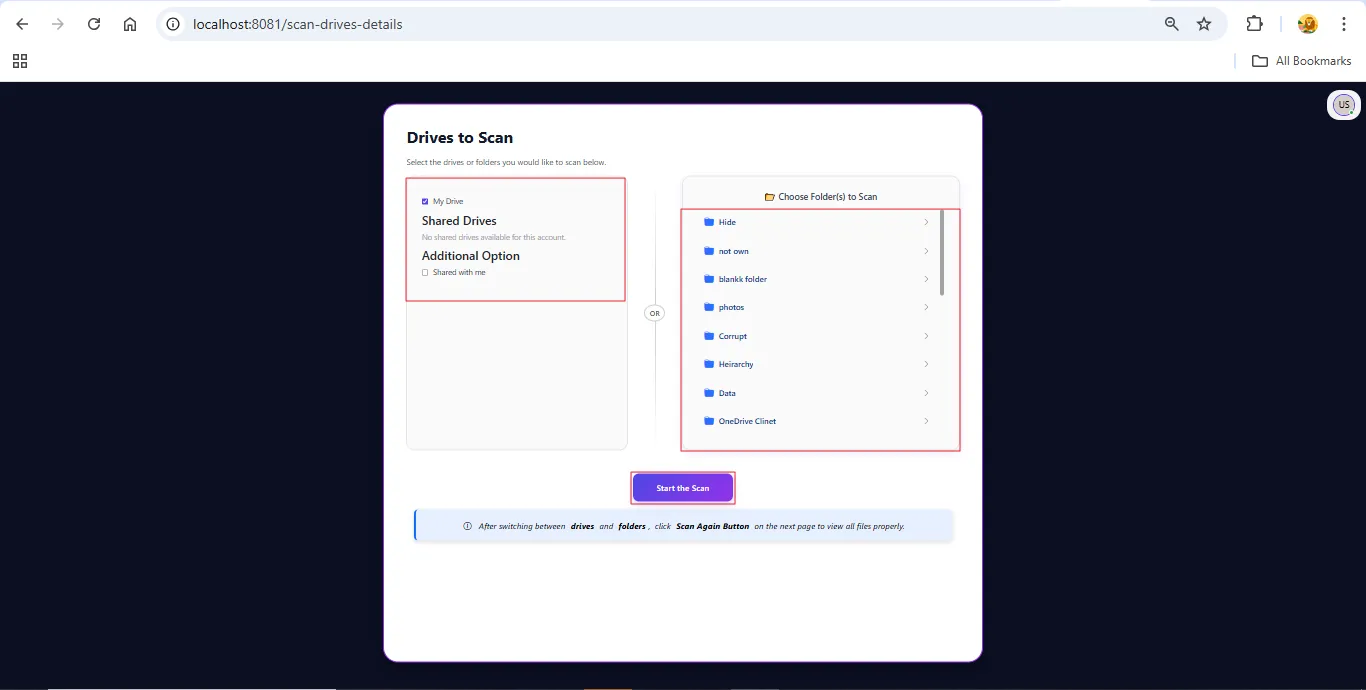
  • Choose specific drives or folders to scan, including My Drive and Shared with Me.
  • Choose Folder(s) to Scan to only scan the selected subfolders within Shared Drives.
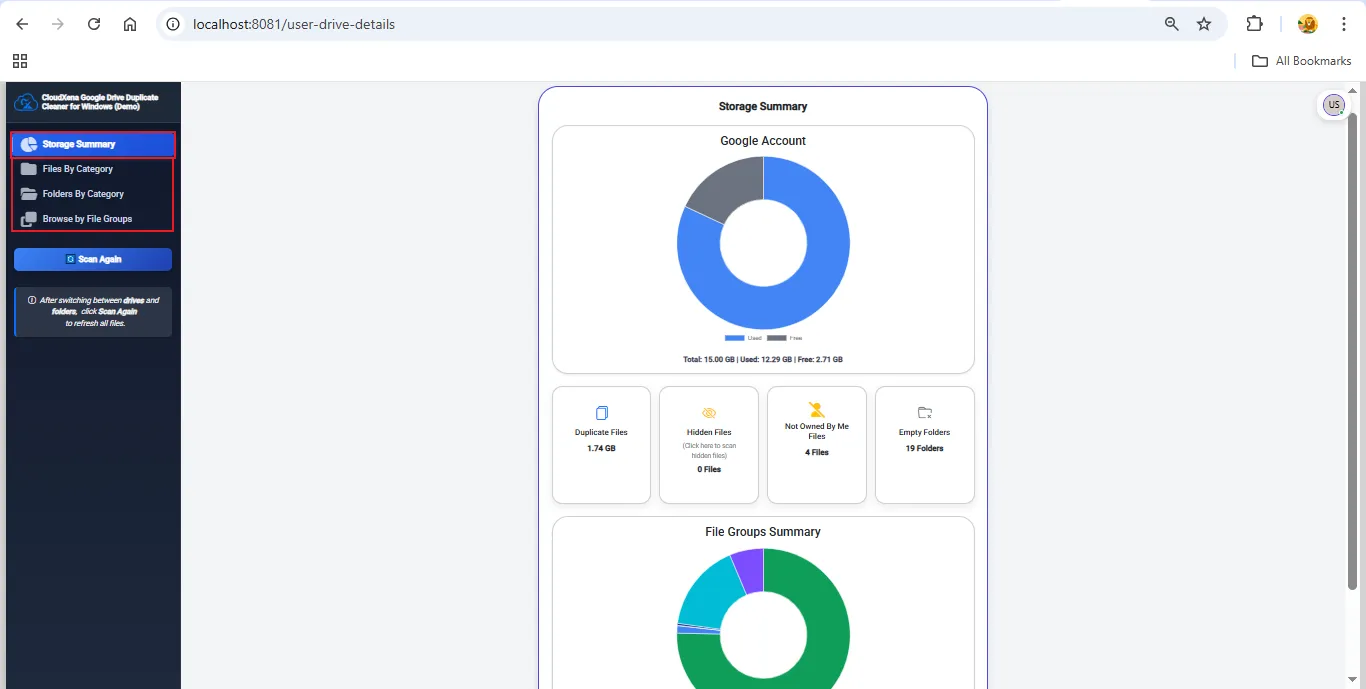
  • Visible Storage Summary, which includes total space, used space, and free space.
  • Displays File Categories, such as Duplicate, not owned by me, Empty files, and more.
  • Analyse your duplicate data in the form of Documents, Images, Photos, Audio, and more with the Browse by File Groups option.
  • Equipped with an option to select None files, All files, Newest files, Oldest files available on the page.
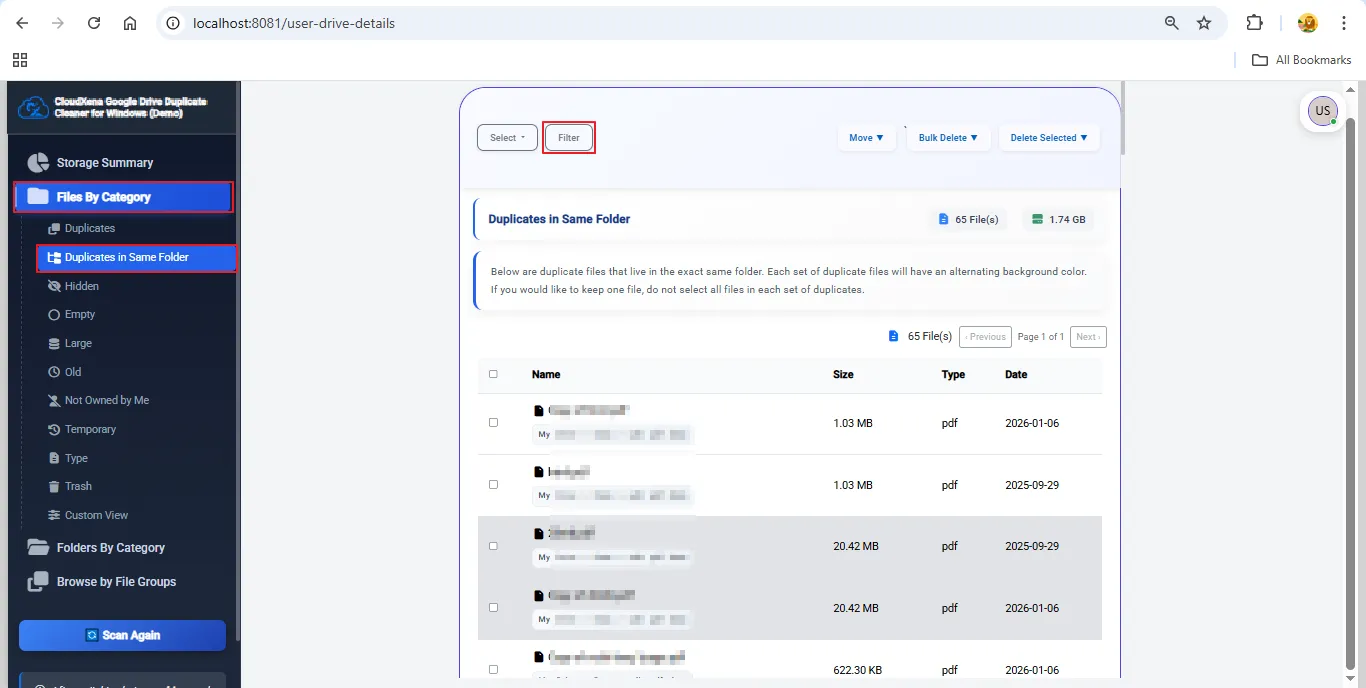
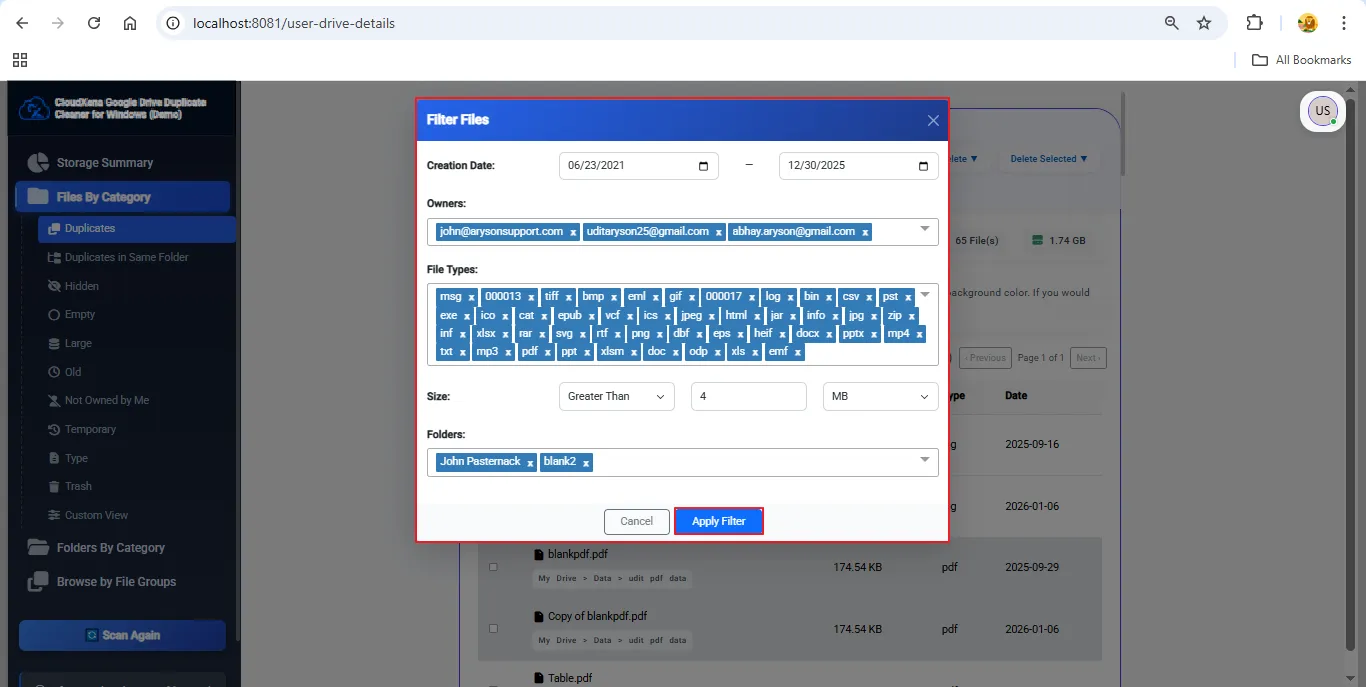
  • Filter Files based on Creation Date, Account Owners, File Type, Size, and Folders.
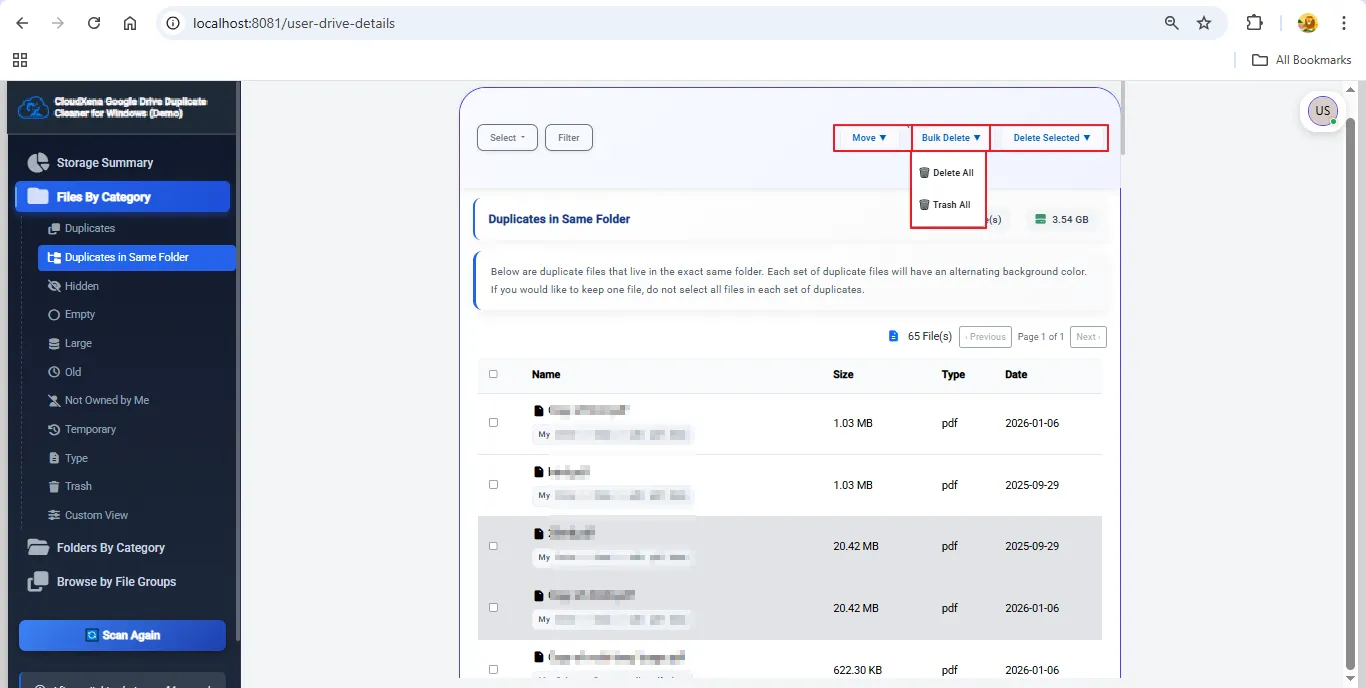
  • Move data easily with the Move All or Move Selected options.
  • Bulk manage files with actions like Trash Newest, Trash Oldest, Delete Newest, or Delete Oldest.
  • Easily manage selected files by choosing Trash Selected or Delete Selected.
  • Size filter to choose greater than or less than size in Bytes, KB, MB, or GB.
  • The tool works on Windows 11, 10, 8, and previous versions.
product-box

Why choose the Google Drive Duplicate Remover?

How Does the Google Drive Duplicate Finder Work?

Cloudxena Google Drive Duplicate Finder Software is an easy-to-use software that helps in finding and managing duplicates with 100% efficiency. The tool provides users with the secure option to log in with their Google Drive account. Also, it has a simple user interface so that even non-technical users can easily interact with the tool.

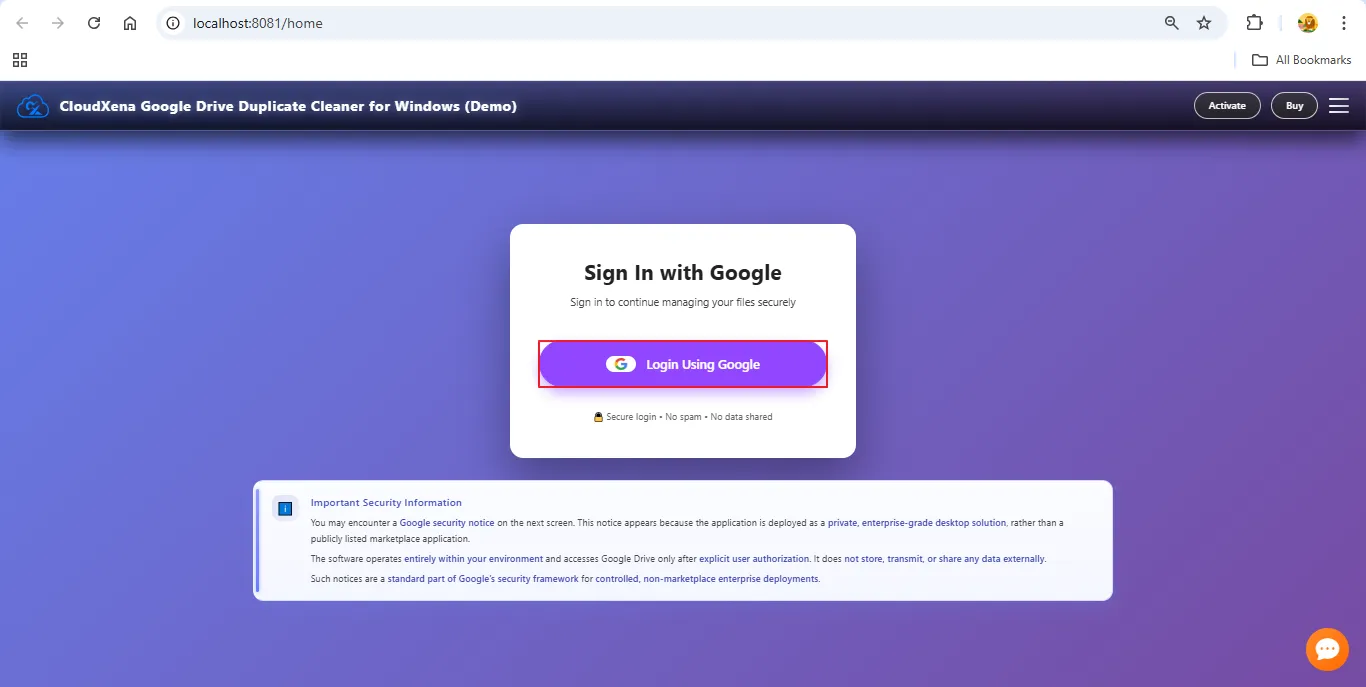
  1. Download and launch the tool on your PC and login with your Google account.
  2. Select the Drive or Folder and click the Start the Scan button.
  3. A storage summary of your Drive, with different file classifications, appears.
  4. Further, click Files by Category, choose Duplicates, and click the Filter option.
  5. Apply the given filters and click the Apply filters button.
  6. At last, choose the duplicates and move them to trash or delete them.

Why do we need CloudXena Google Drive Duplicate File Remover?

CloudXena helps remove duplicate files quickly, frees storage space, and avoids manual cleanup.It keeps Google Drive organized and easy to manage with smart filters and bulk actions, saving time.

Duplicate Detection For Different Folder Categories, File Categories, and Groups

The advanced Google Drive Duplicate Cleaner organizes your files into easy-to-view groups. This makes it faster and more accurate to analyse duplicates. Each group lets you check specific file types without losing any details.

📄

Files Category

  • Duplicates
  • Duplicates in Same Folder
  • Hidden
  • Empty
  • Large
  • Temporary
  • Old
  • Not Owned by Me
  • Trash
  • Type
  • Custom View
📁

Folders Category

  • Empty
🗂️

File Groups

  • Documents
  • Images
  • Videos
  • Audio Files
  • Archieves
  • PDFs
  • Text Files
  • More

Remarkable Features of CloudXena Google Drive Duplicate Remover Tool

Safe and Reliable Duplicate Removal

Safe and Reliable Duplicate Removal

CloudXena safely cleans duplicate files from Google Drive without touching original data. Users can choose to scan only My Drive or Shared with Me instead of the entire Drive. This saves time, reduces scanning load, and ensures faster, more focused cleanup results.

Effortless Bulk File Management

Effortless Bulk File Management

The tool allows selecting multiple files together to delete or move them to the Trash in one action. This bulk handling makes large cleanup jobs faster and is especially useful for companies or teams that manage huge Google Drive datasets regularly.

Safe Delete and Trash Options

Safe Delete and Trash Options

After selecting duplicate files, users can choose between permanent deletion and moving them to Trash. Trash keeps files recoverable for a while, while permanent deletion frees immediate storage. This flexibility gives users complete control over their Google Drive cleanup.

Organized Display of Scan Results

Organized Display of Scan Results

Once scanning is complete, CloudXena displays duplicate files in a clean, structured layout. Users can easily switch between duplicates, hidden files, and empty files. This organized view helps quickly review and manage large amounts of data without confusion.

Categorisation of Files and Folders Based on Category

Categorisation of Files and Folders Based on Category

Utilising this tool, users may view their scanned files organised by category and separate duplicates, hidden files, not owned files, and empty files into distinct categories, allowing users to view a detailed list of files in any category for easier management by clicking once.

File Filtering Based on Flexible File Size

File Filtering Based on Flexible File Size

Users are able to filter their files using either a greater-than or less-than condition with respect to file size. Users may enter any size, such as 4GB, Bytes, KB, MB, or greater, thus allowing users to quickly determine whether any copy they have is an unusually large/small duplicate.

Filtering Based on Creation Date

Filtering Based on Creation Date

The file filter option on CloudXena allows the user to filter duplicated files by the date the file was created. Users can choose the start/end date so that it is easy to find files created many months ago or just created in the last few days, making the file cleanup process much quicker and more efficient.

Ownership-Based File Sorting

Ownership-Based File Sorting

Users can sort their files based on the Owner's name, and multiple Owners may be selected by means of a drop-down box. This filter is incredibly useful for Shared Drives and Team Folders with multiple Owners.

Filter by Specific File Extensions

Filter by Specific File Extensions

Users can filter their scanned files using specific extensions such as PDF, ZIP, XLSX, or EML. A search bar helps quickly locate formats, and Select All includes every file type. This makes finding duplicate files of specific formats simple.

Custom Drive/Folders Scanning

Custom Drive/Folders Scanning

You can scan an entire Google Drive with Drive Level Scanning or just Folders with Folder Level Scanning. This improves your ability to completely clean out your cloud storage, depending on your data size and individual user needs.

Graphical Storage Usage Overview

Graphical Storage Usage Overview

The tool provides a graphical chart showing total storage, used space, and free space. Users can instantly understand their storage usage. The Scan Again option updates results after any changes in Drive or folders.

Easy and User-Friendly Interface

Easy and User-Friendly Interface

CloudXena features a clean, simple interface that works for both beginners and professionals. Every option is clearly labeled, easy to access, and quick to use. Even large duplicate-cleaning tasks can be completed without technical experience or confusion.

Compatible with All Major Versions of Windows

Compatible with All Major Versions of Windows

The CloudXena Duplicate Cleaner for Google Drive is fully compatible with all major versions of Windows, from Windows 11 through to Vista. Users will be able to maintain their duplicates regardless of the age of the system they are using.

Demo Version Available

Demo Version Available

A Demo version allows users to scan their Google Drive and preview identified duplicates. They can explore features, check accuracy, and understand how the tool works before purchasing. This helps users make a confident decision based on real results.

Technical Specifications: Google Drive Duplicate Remover Tool

Key --

Version: 26.01

Size: 140MB

License: S/A/E/T

System Requirements --

Processor: Intel Core 2 Duo CPU E4600 @ 2.40GHz 2.39GHz.

Memory: 4GB required (8 GB recommended)

Operating System: Windows 11, 10, 8.1, 8, and previous versions

Note: The Demo version allows you to scan up to 100 GB of duplicate files; you can’t delete or move your duplicates to trash with the free version.

Frequently Asked Question
Ans- Yes. It uses secure Google OAuth login, never saves your data, and scans files only with your permission. Everything is processed safely inside your Google Drive.
Ans- Yes. The demo version lets you scan your Drive, preview duplicate files, and try key features before upgrading for full cleanup options.
Ans- Yes. You can either delete duplicates permanently or move them to Trash, where they can be restored later if required.
Ans- Yes. It provides a complete visual Storage Summary showing total space, used space, free space, and insights like duplicate, hidden, and empty files.
Ans- Yes. You can choose Drive-level scanning or scan only selected folders. This makes the process faster and more precise.
Google Drive Duplicate Remover Demo vs Licensed Version
Software Feature Demo Version Paid Version
Scan your entire Google Drive or specific folders Scan up to 100GB 100GB /250GB /500GB or unlimited: Based on the License Type
Preview all detected duplicate files
View a clear storage summary
Organize Files By Category
Organize Folders By Category
Browse by File Groups
Use advanced filters for date, size, format, or owner
Permanently delete duplicate files
Move duplicates to the Trash folder
Remove only the duplicates you select
Get 24/7 technical support
Download Purchase Now

Testimonials

A Look at What Our Clients Say

For over a decade, we’ve helped users solve their data-related challenges with secure and reliable solutions. Many of our customers have shared their experiences with us. Here are a few of their thoughts.