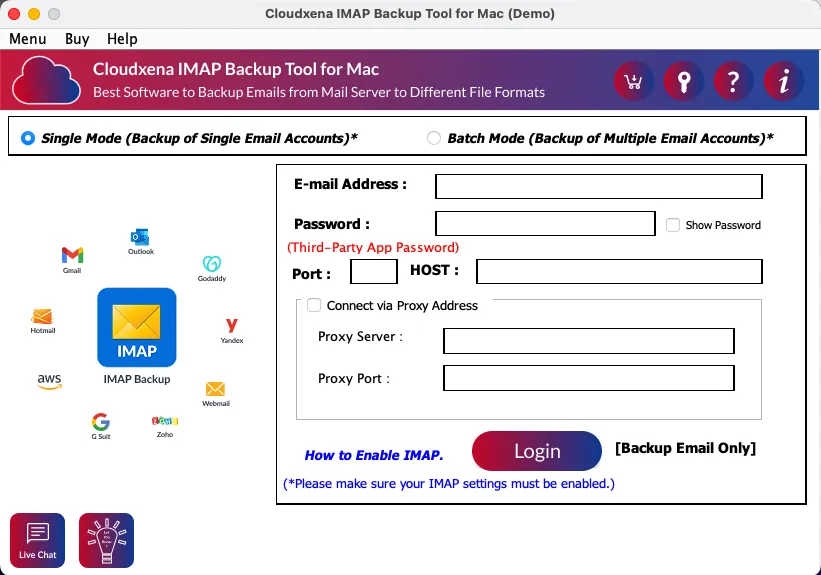
- Software Working Process
- User Interface
Software Working Process
1: First, install and launch the CloudXena IMAP Email Backup Tool on your Mac system.
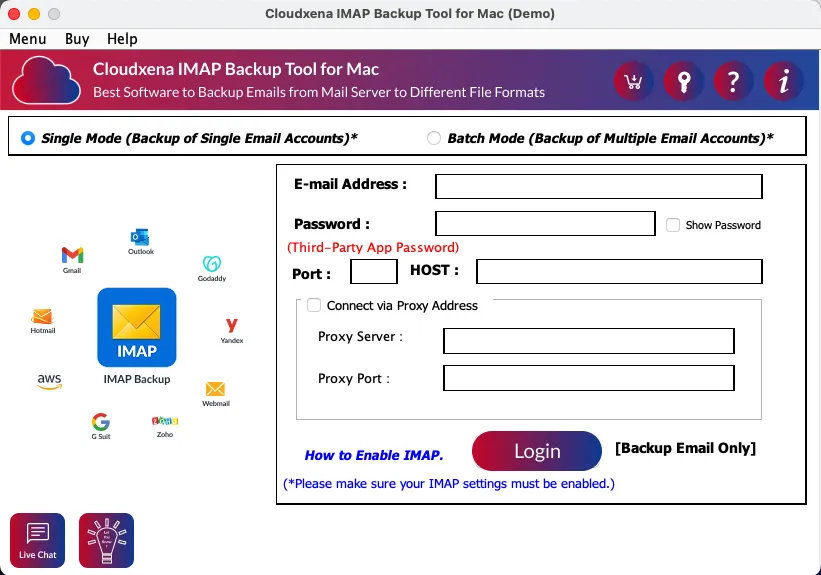
2: Next, choose the Mode (Single Mode or Batch mode) in which you want to backup your IMAP account.
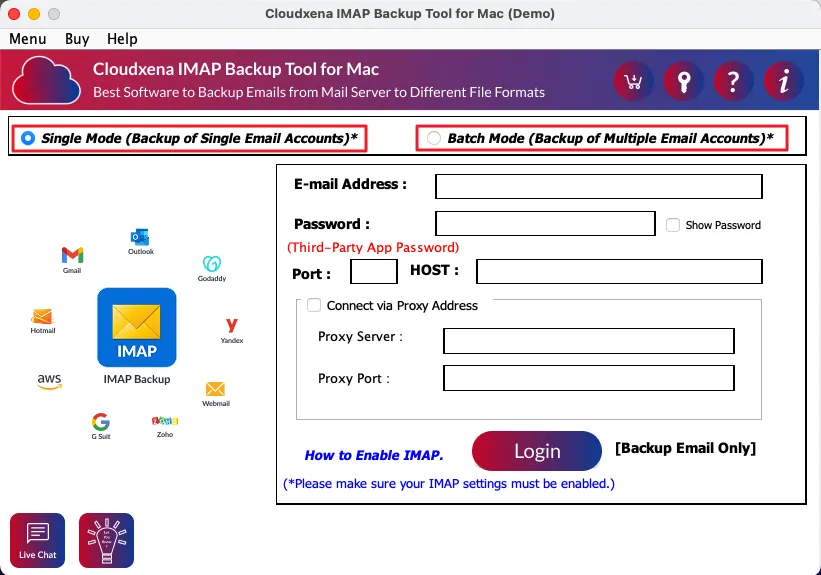
3: If you chose Single Mode, enter your IMAP account credentials and click the Login button. Also, you have the option to connect via a proxy Address.
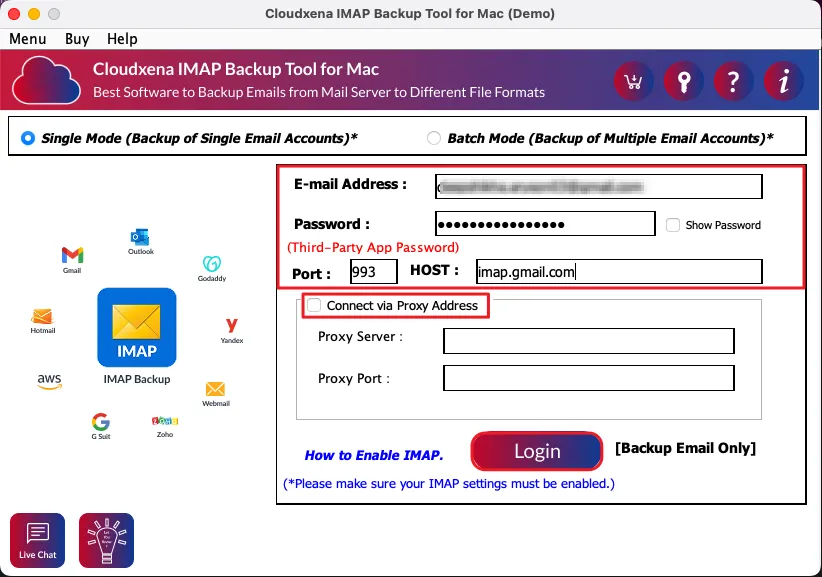
4:Alternatively, if you choose the Batch Mode, you can either use the Import CSV option to get all the details in one go or click Add Row to add the account manually. Once done, click Next.
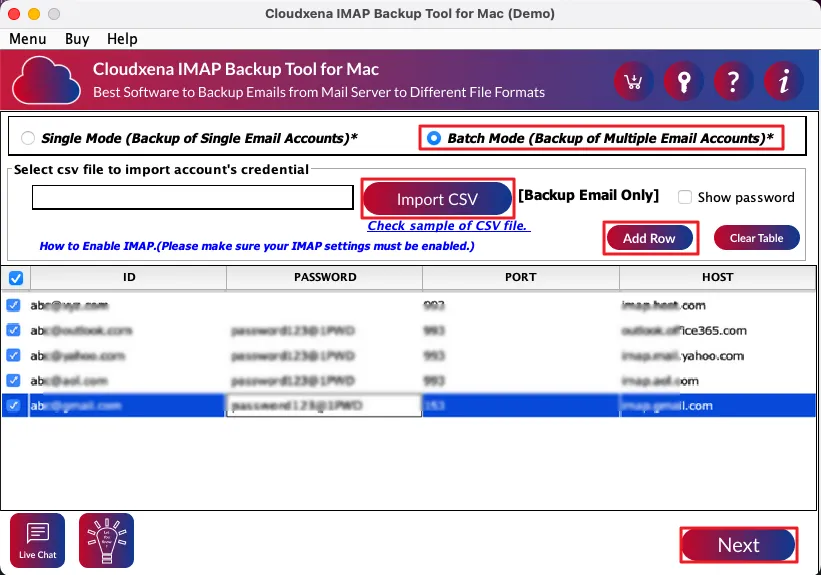
5: Once accounts are added, the tool will start loading your email data.
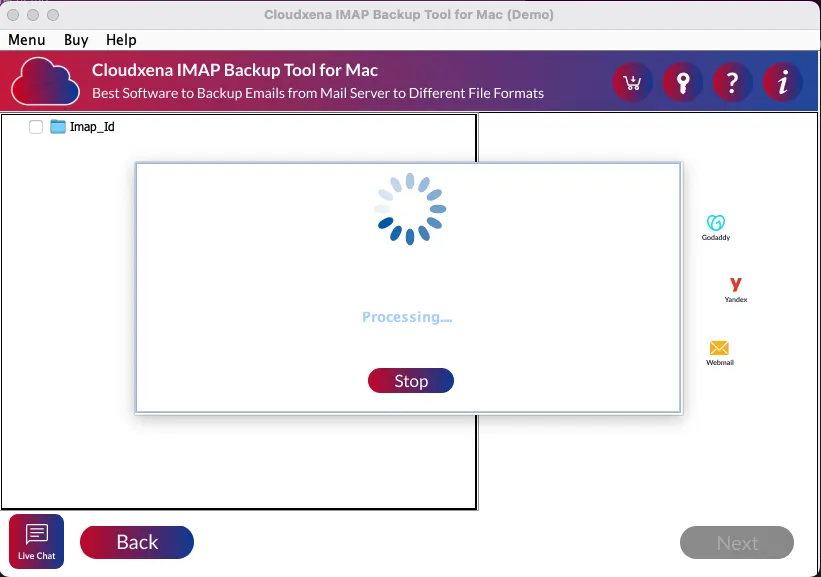
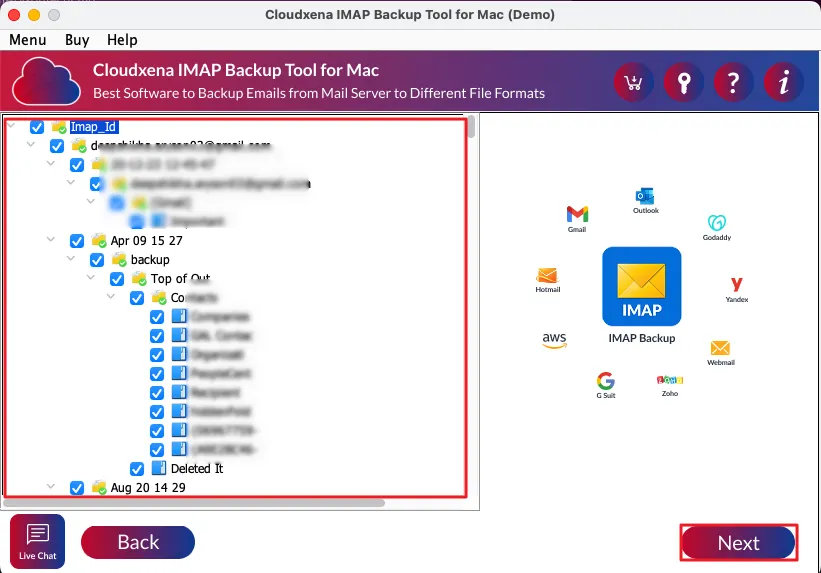
6: Now, open the tree hierarchies and select emails or folders you want to backup and the Next button.
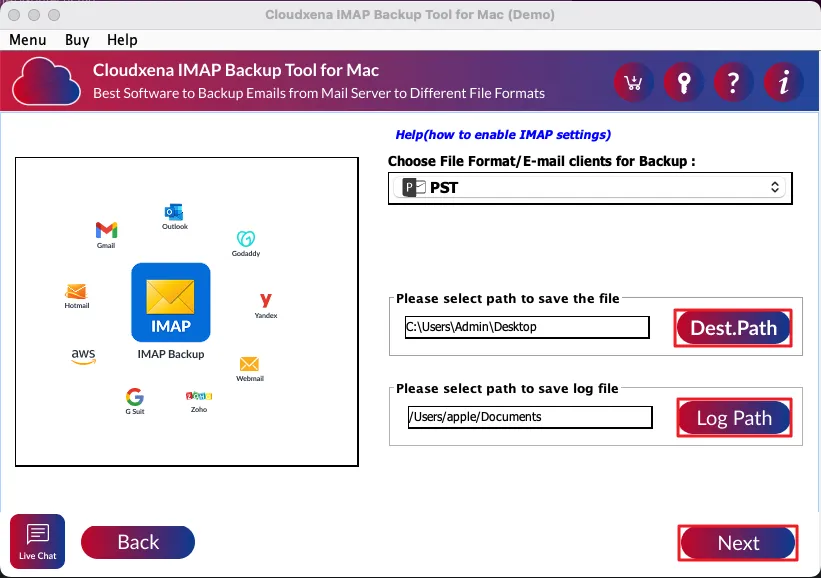
7: Moving on, choose the file format or email client to convert or migrate your data.
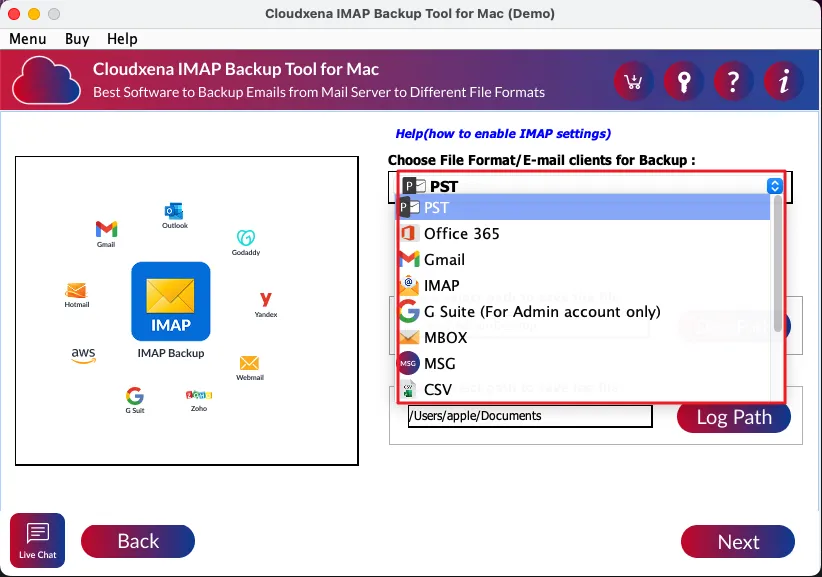
8: After selecting, choose the Destination Path to save the file and click Next.
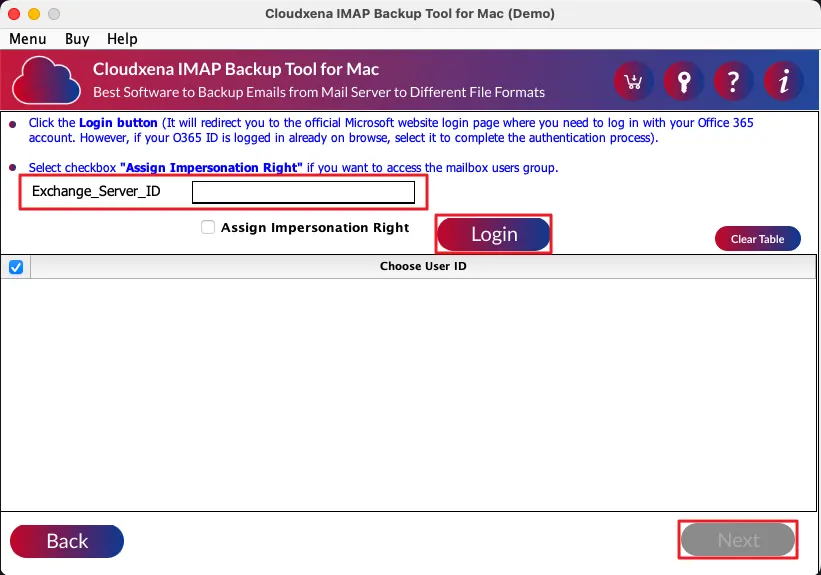
9: If you choose any email client, you will have to enter the correct email Exchange Server credentials and click Login, followed by Next.
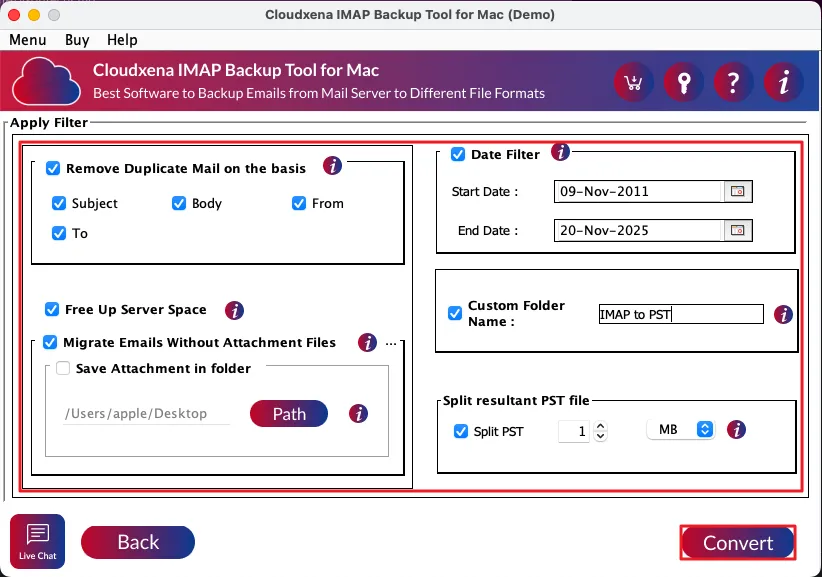
10: Moving on, apply advanced features and filters, and click Next.
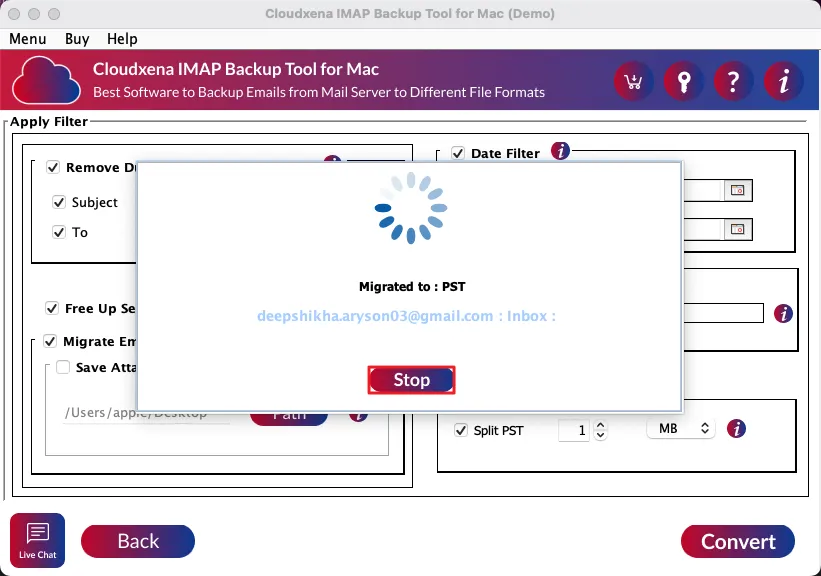
11: From here, the tool will start your conversion process. Click the Stop button to stop the migration in between.
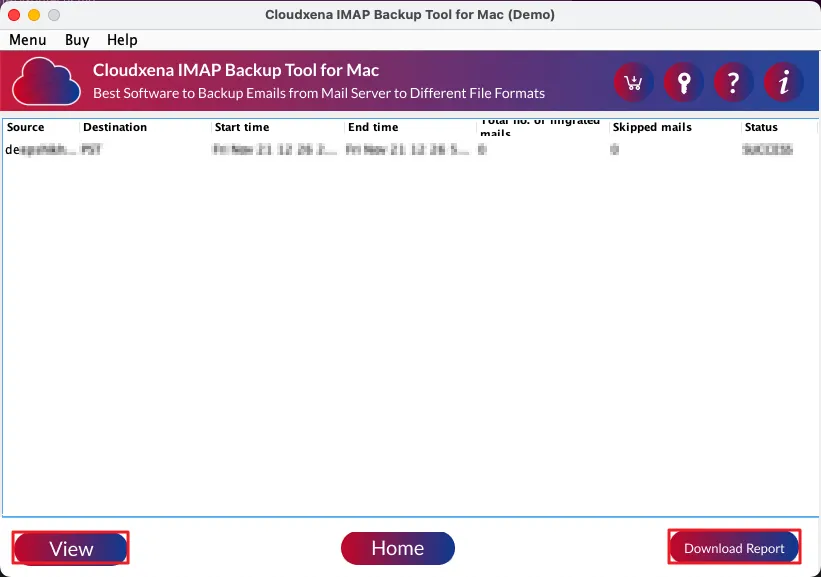
12: Finally, your process to backup or migrate IMAP account data is completed. You can now either Download Report or View the conversion.
Activate the Software
Installation & Uninstallation
Download the step-by-step installation or uninstallation PDF guides below:
Windows Installation Windows UninstallationUser Interface