- Software Working Process
- User Interface
Software Working Process
1: First, download and install the software to run it on our system.

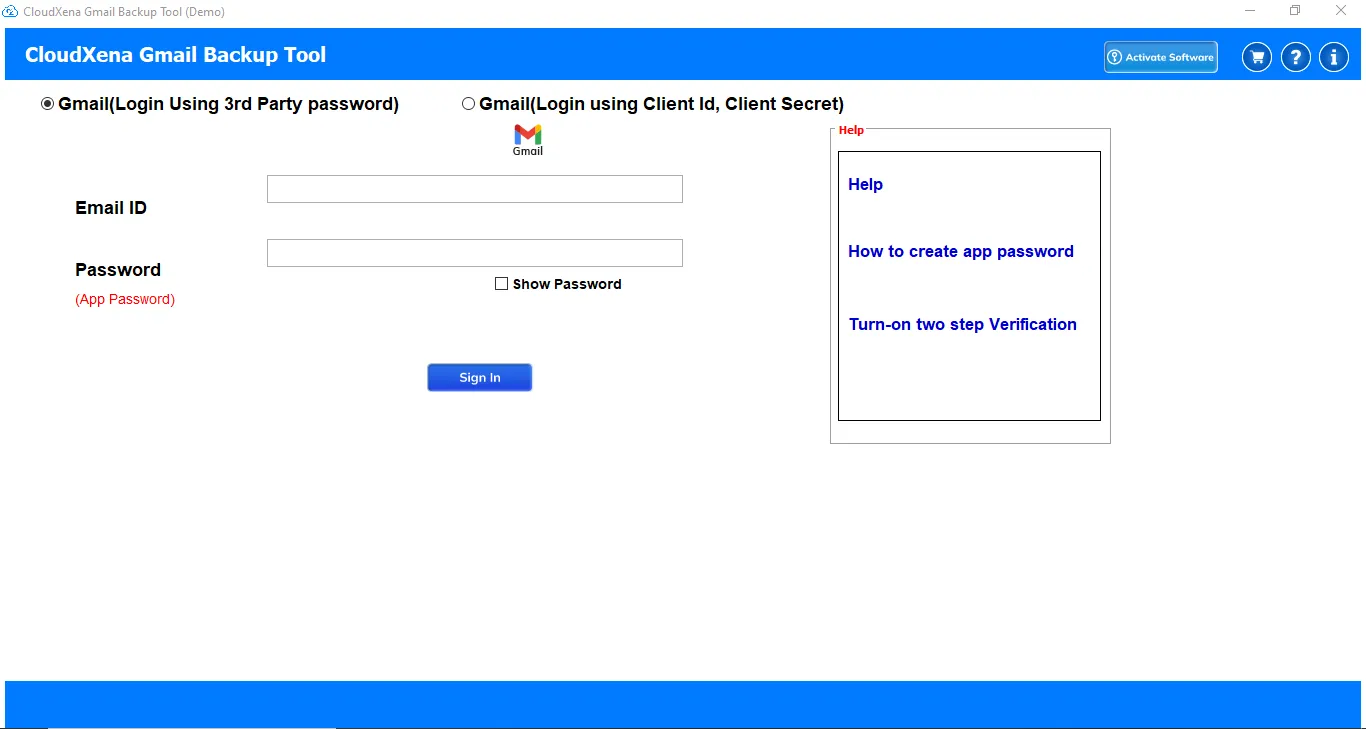
2: Once launched, choose your login methods then enter your Gmail credentials and click Sign in.

3: Now, the tool will start loading your mailboxes, select the mailboxes you want to backup and click Next.

4: After that, select any file format from the given list in which you want to backup your Gmail data.

5: Also, you choose to migrate your data to any of the listed option of Email Clients. Then simply login with your email credentials.

6: Further, choose the advanced features and advanced filters for a more organised and selective export process.
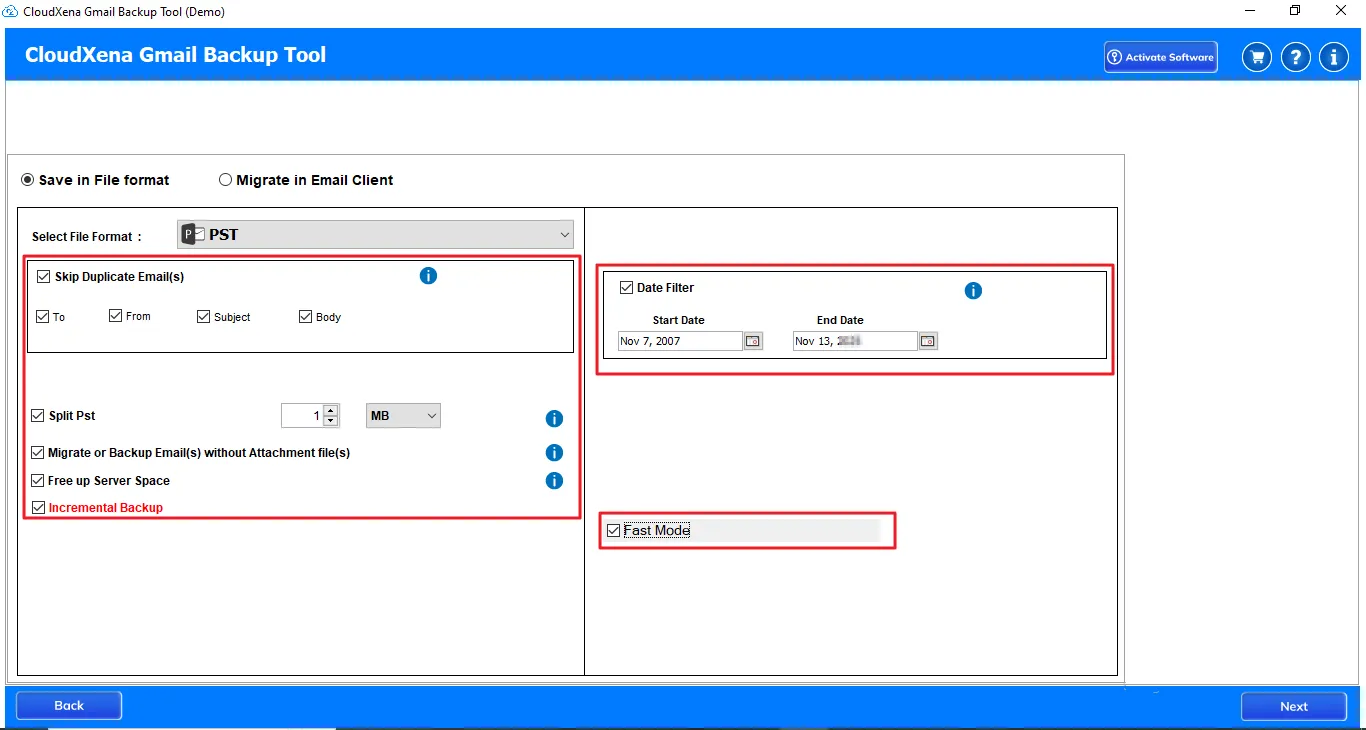
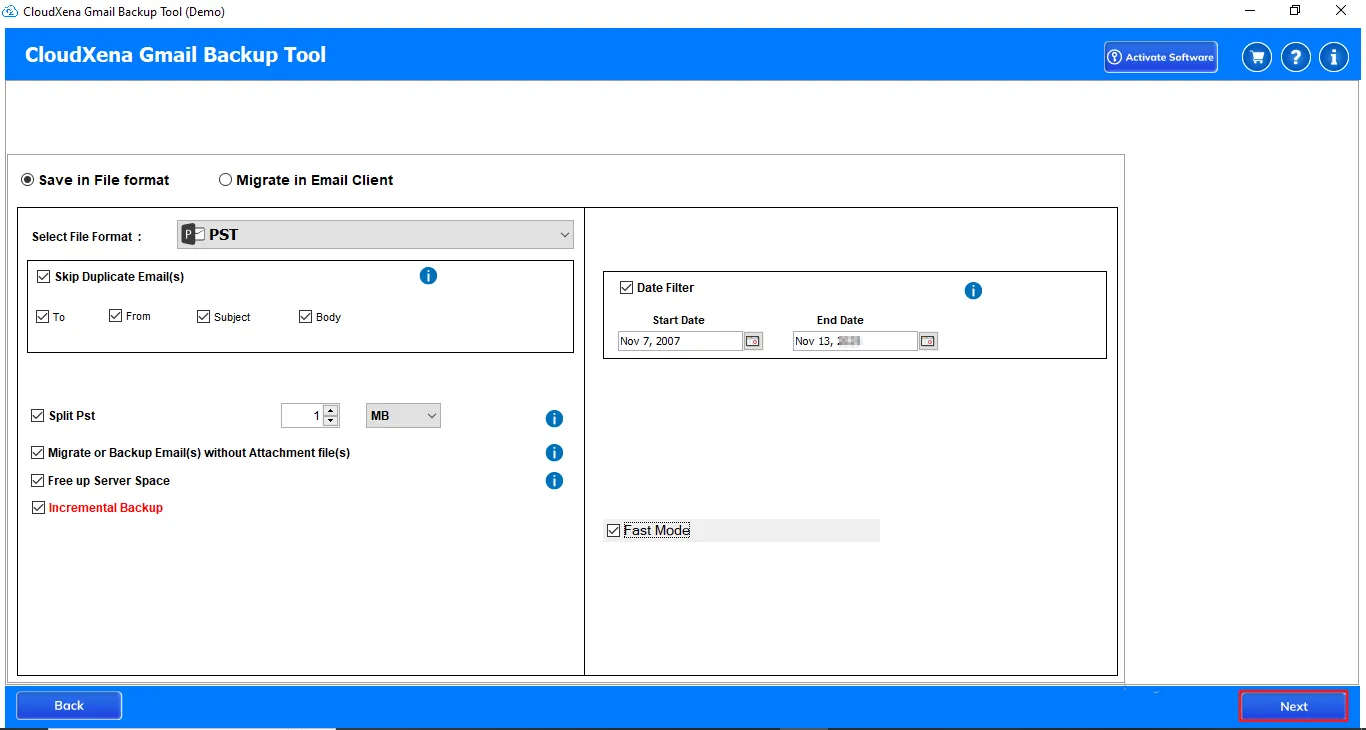
7: Once you apply the required filters, click Next to move to the next step.
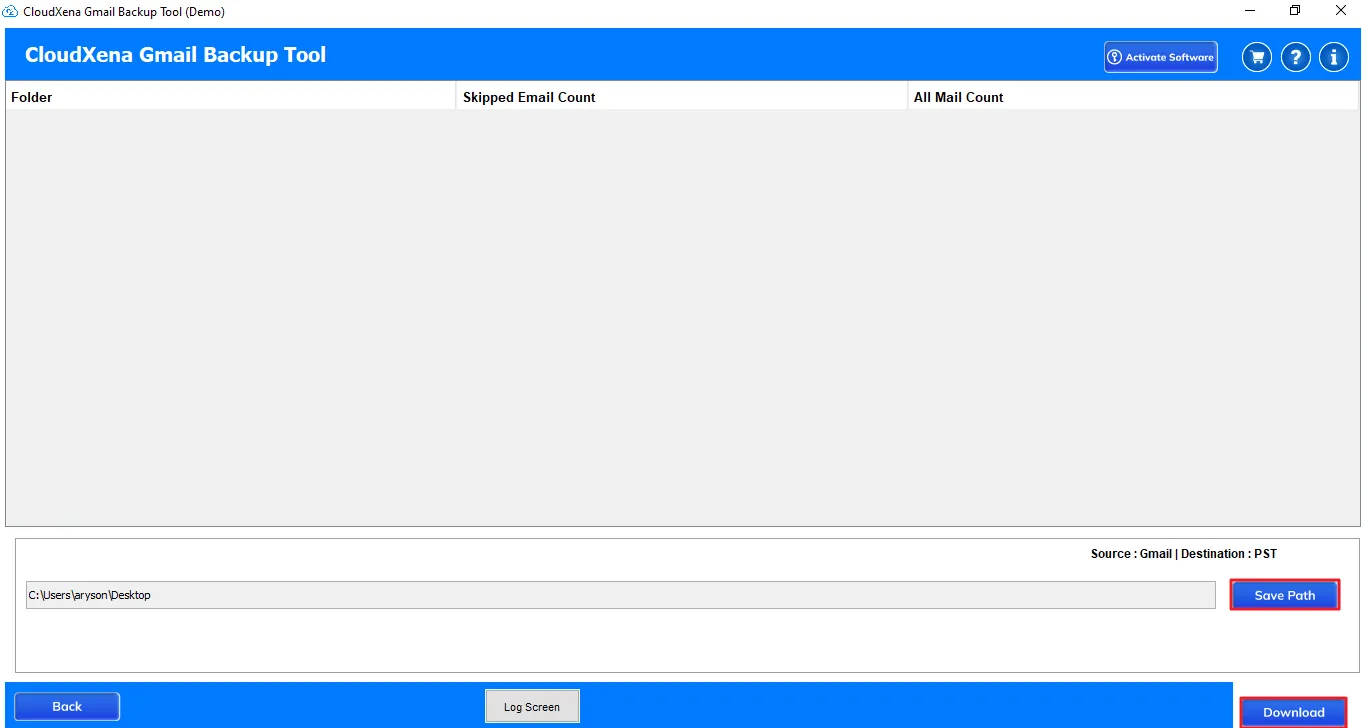
8: Moving on, choose the Path to Save your Gmail data on your computer. And click Download.
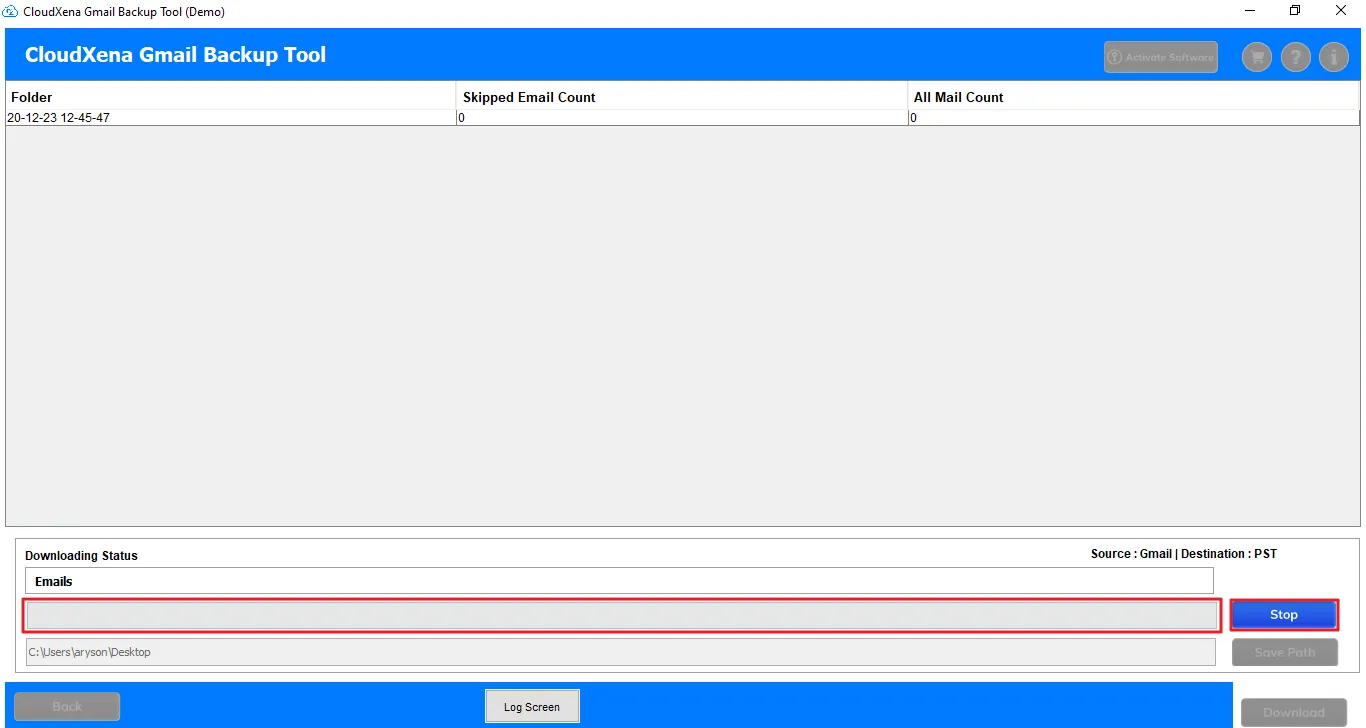
9: Finally, your conversion will start. Use the Stop button to stop the migration if required.
Activate the Software
Installation & Uninstallation
Download the step-by-step installation or uninstallation PDF guides below:
Windows Installation Windows UninstallationUser Interface
You will see the following interface once the tool launches.