- Software Working Process
- User Interface
Software Working Process
1: Download and launch the CloudXena OST to PDF Converter Tool on your system.
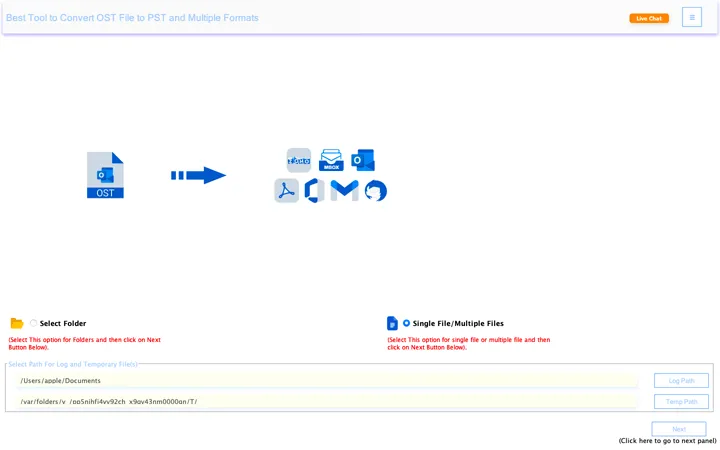
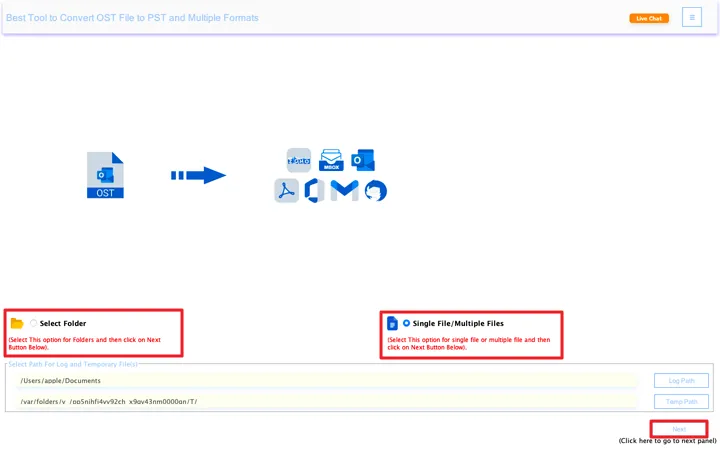
2: You will be provided with two options: Select Folder or Select Single/Multiple Files. Choose the appropriate option based on your requirement, then click Next to proceed.
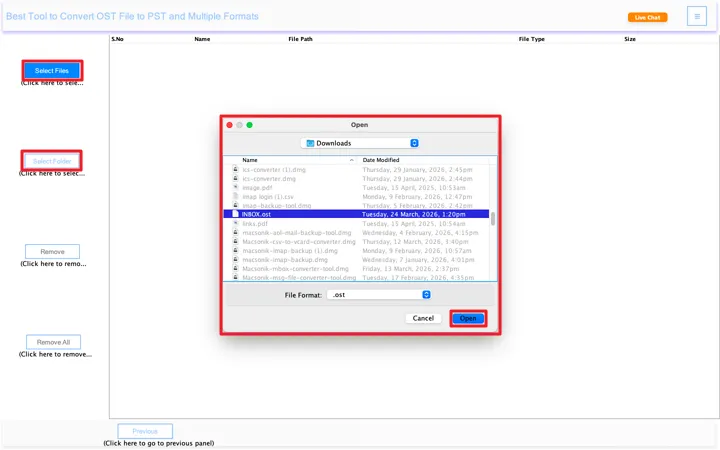
3: Click on Select File or Select Folder to browse and locate your OST files. After selecting the files, click Open to load them into the software.
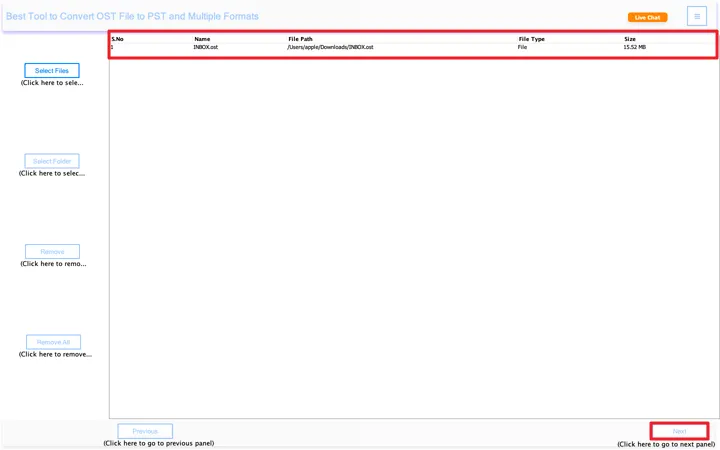
4: Once all the required files are added, click Next to continue.
5: The software will scan the selected files and display all data in a tree view structure. You can double-click any item to preview emails along with their attachments.
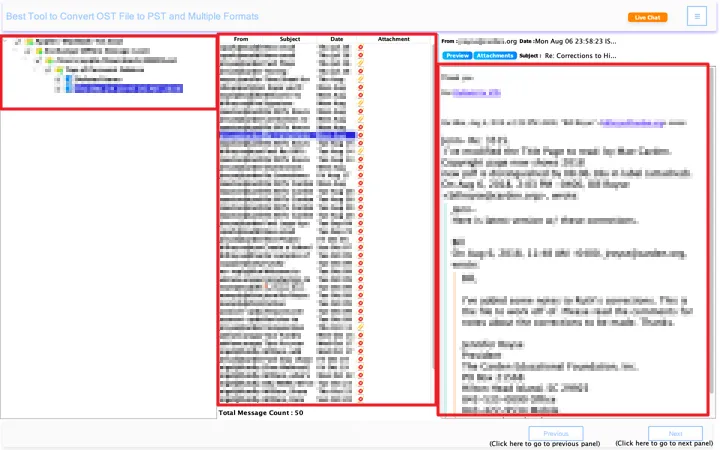
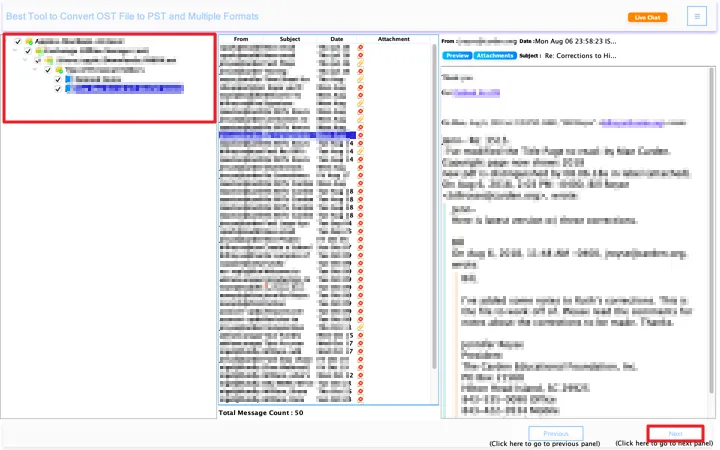
6: Select the desired folders for conversion by checking them, then click Next to move forward.
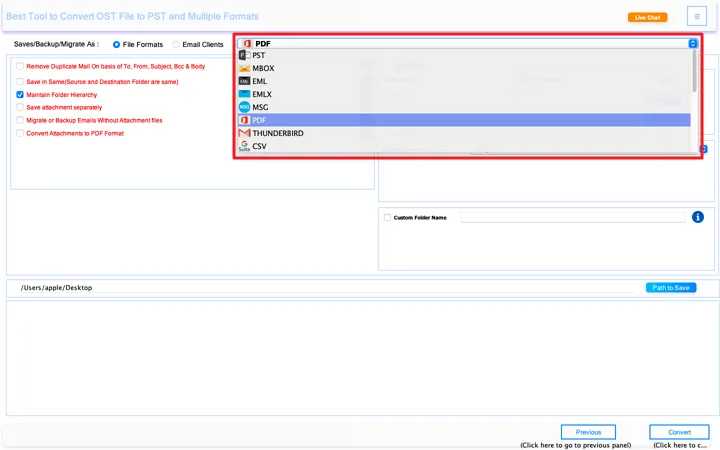
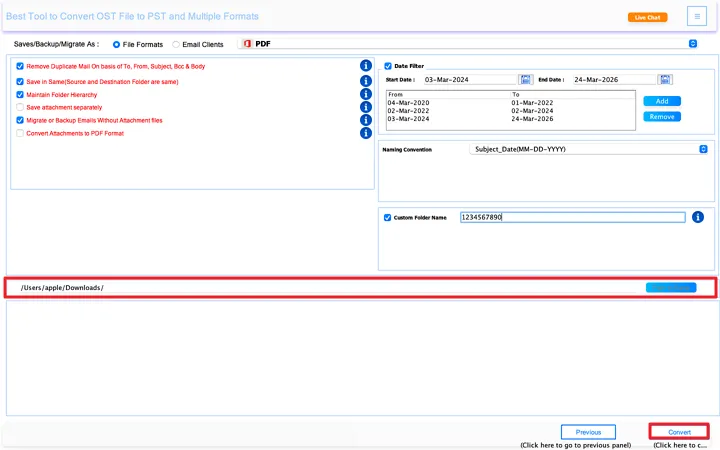
7: Navigate to the File Format section and choose PDF from the Save/Backup/Migrate As drop-down menu.
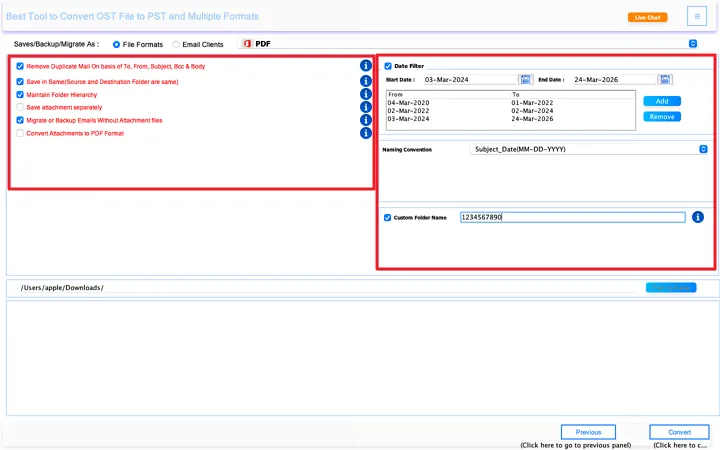
8: In this step, you can apply different filters and settings before exporting your data to PDF format:
- Remove Duplicate Mail – Skips duplicate emails based on fields like To, From, Subject, CC, and Body.
- Save in Same (Source and Destination) Folder – Keeps the output in the same folder structure as the original.
- Maintain Folder Hierarchy – Preserves the exact folder and subfolder structure.
- Save Attachment Separately – Saves email attachments in a separate folder instead of embedding them.
- Migrate or Backup Emails Without Attachments – Exports only the email content and ignores attachments.
- Convert Attachments to PDF Format – Converts attachments into PDF files along with emails.
- Date Filter – Lets you select a specific date range to export only required emails.
- Naming Convention – Allows you to rename output files (e.g., Subject_Date format).
- Custom Folder Name – You can set a custom name for the output folder.
After setting the required filters, you can proceed with the export process.
9: Click on the Browse button to select the destination location where you want to save the converted PDF file. Once the path is selected, click Convert to begin the conversion process.
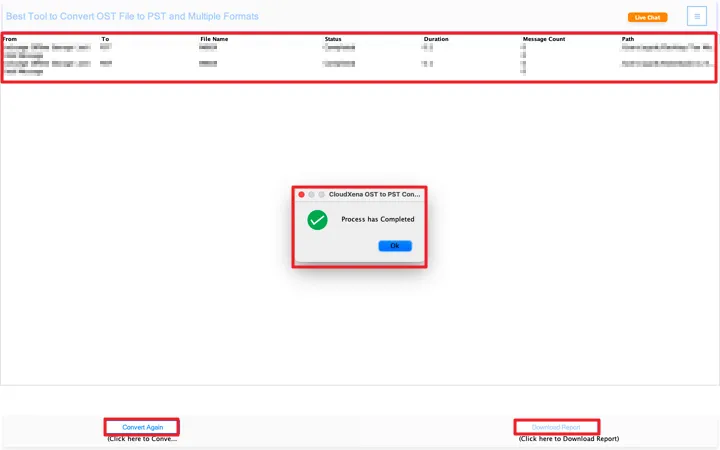
10: After the conversion is complete, a confirmation message will appear showing “Process has Completed.” Click OK to close it.
You can view the summary panel at the top, which shows details like file name, status, duration, message count, and save path to verify the results.
If needed, click Convert Again to repeat the process, or choose Download Report to save a detailed log of the conversion.
User Interface
Once you launch the CloudXena OST to PDF Converter, you will see the following interface.