- Software Working Process
- User Interface
Software Working Process
1: First, install and launch the ICS Converter Tool on your system.
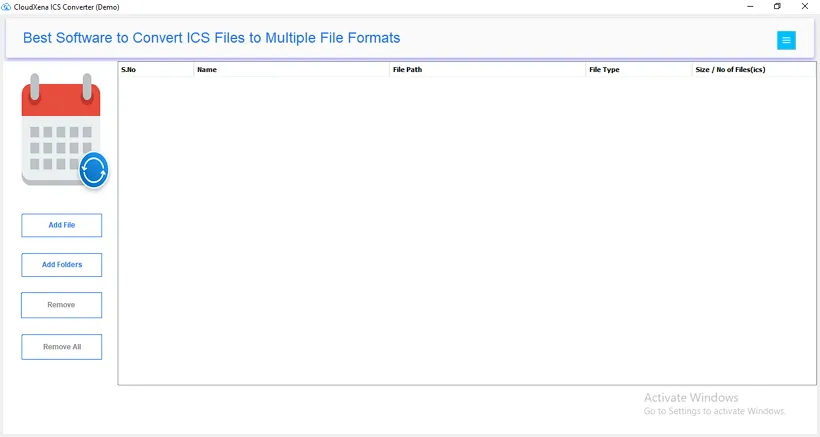
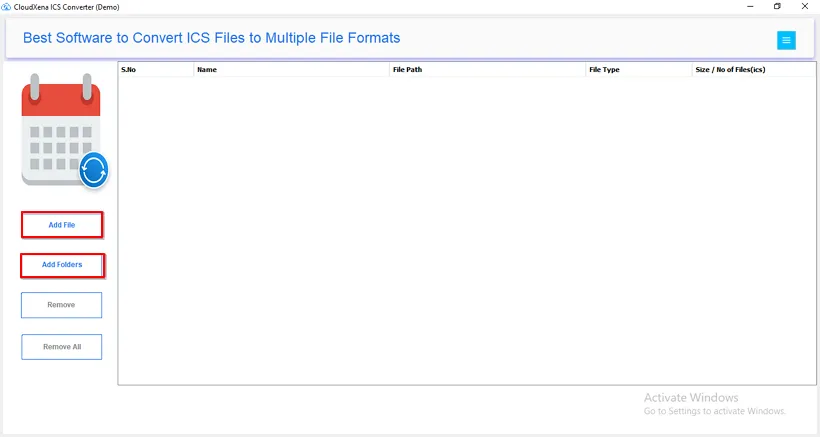
2: After that, choose between the Add File/Add Folder option and start browsing your ICS Files.
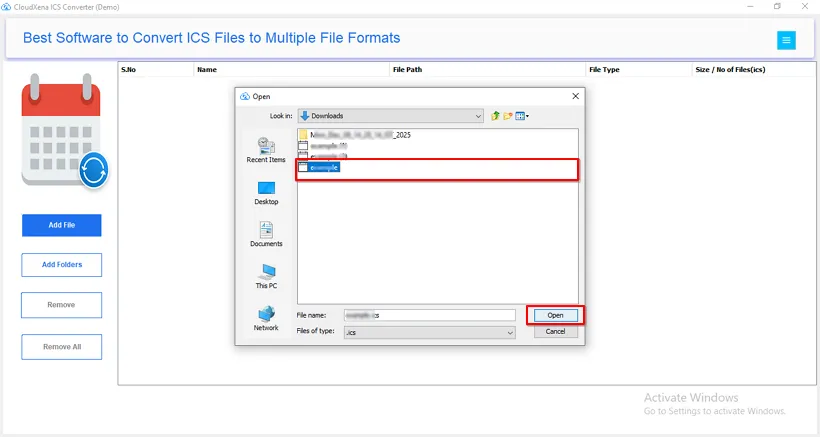
3: Then, select your ICS files and click Open to load them into the software.
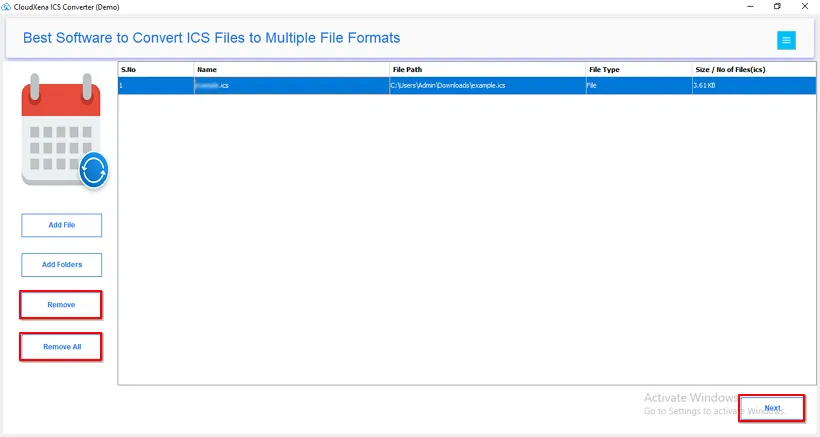
4: After that, use the Remove or Remove All option to delete any unwanted files from the list and press Next.
5: From the tree hierarchy, you can select any folder by double-clicking it. Then, from the displayed list, choose the particular calendar and check its Preview. After previewing, click Next to proceed.
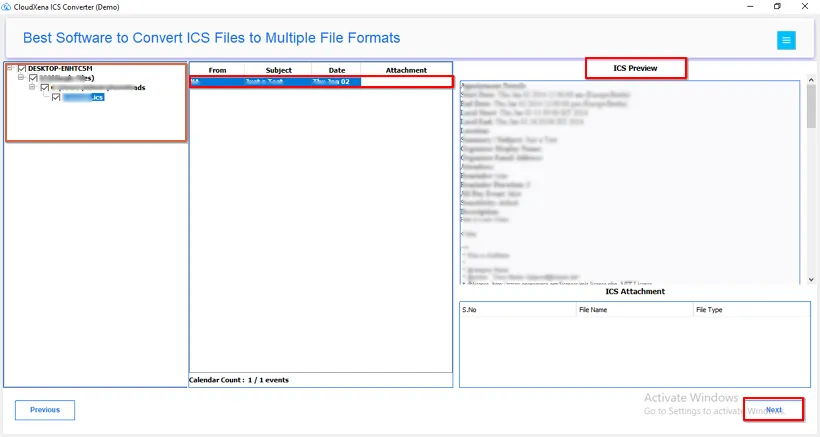
Save ICS in Other File Formats
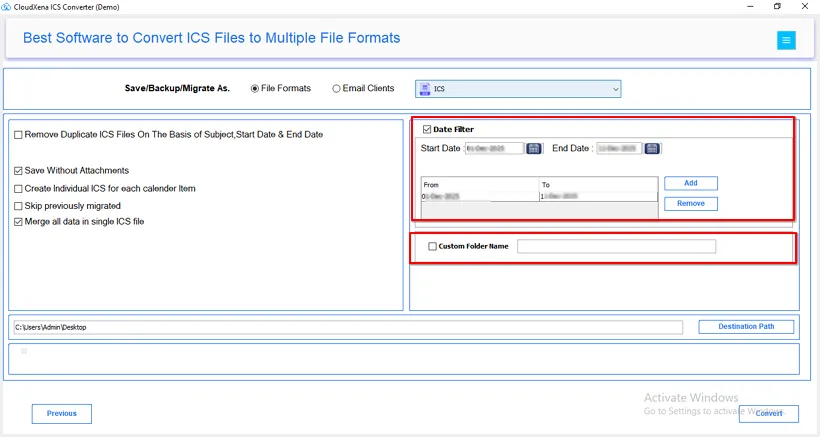
6: Now, select any file format you want to convert your ICS files into. Let’s say we choose the ICS file format.
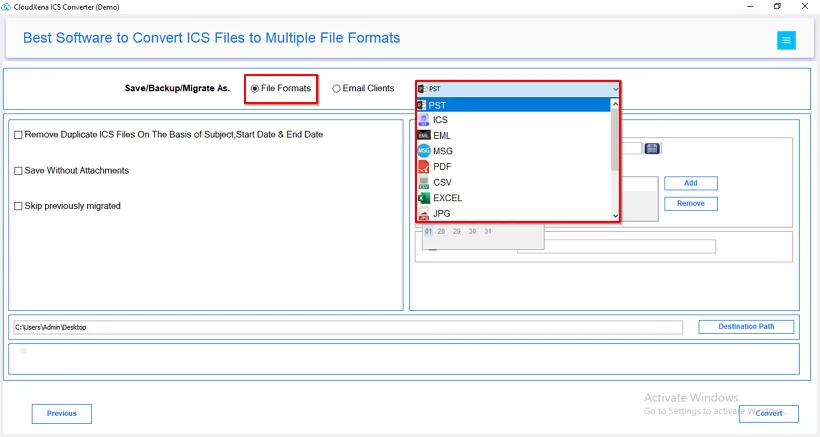
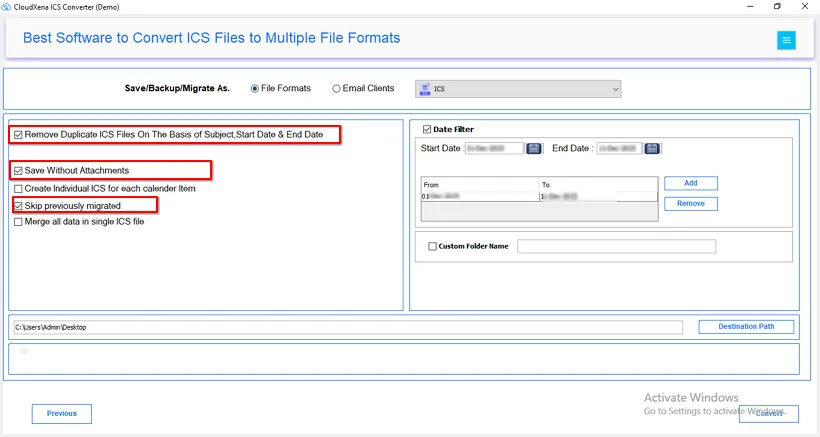
7: These three filters help you manage your exported calendar files:
- Remove Duplicate ICS Files On The Basis of Subject, Start Date & End Date: Stops repeated events from being saved (based on event name, start, and end time).
- Save Without Attachments: Removes any extra files (like documents) that were attached to your meetings.
- Skip previously migrated: Ignores files you already saved in a past run, only moving new items.
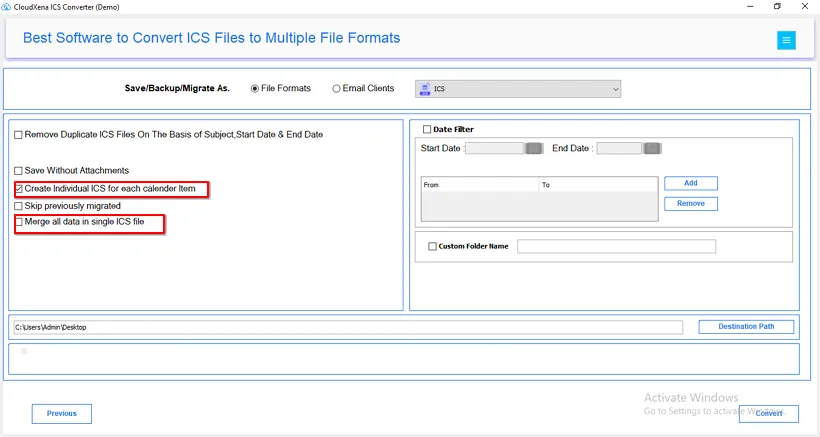
8: Also, you must pick one of these two options, as you cannot use both:
- Create Individual ICS for each calendar item: This makes a separate file for every single event you export.
- Merge all data in single ICS file: This puts every event into one big file, instead of making many small files.
9: These final filters decide what calendar items you save and how they are recognised:
- Date Filter: You can choose a start and end date. Only events happening between those dates will be exported.
- Custom Folder Name: You can type a name for the resultant file for quick access on the PC.
Advanced Filters with Other Formats
These filters control how your calendar events are turned into PDF documents:
- Save Attachment Separately: This option saves any files attached to your calendar events into a separate folder, instead of trying to include them in the PDF itself.
- Create Individual PDF for each calendar item: This makes a separate PDF file for every single event you export.
- Merge all data in single PDF file: This puts every event into one big PDF file, instead of making many small PDF files.
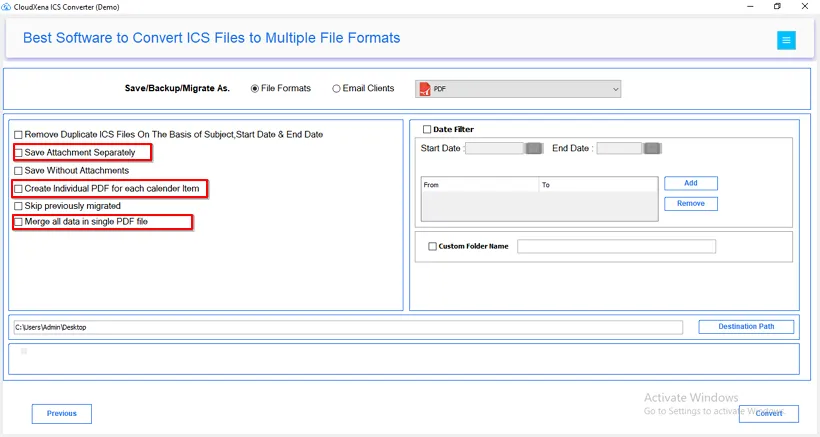
Note: In CSV and TXT formats, you can create an individual calendar item or merge all data into a single file.
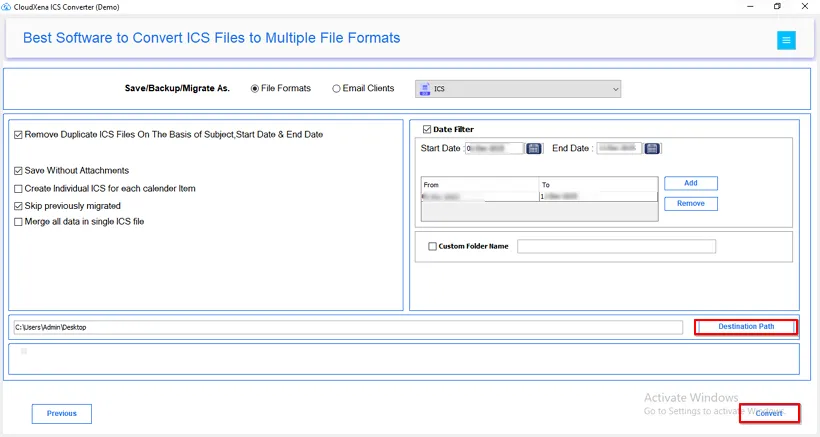
10: Now, select the destination Path to Save and click the Convert button to start the migration process.
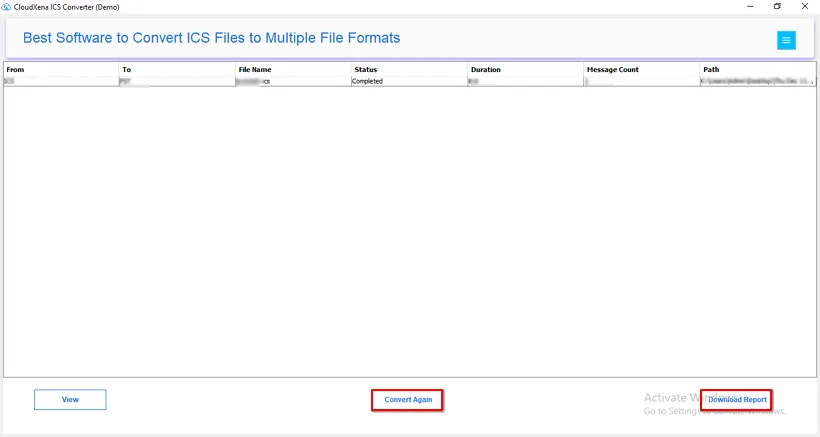
11: At the end, the process for ICS conversion completes successfully. Click Download Report or Convert Again if required.
Migrate ICS to Email Clients
Complete Steps 1–5, then follow these instructions:
6: Alternatively, you can select any Email Client in which you want to migrate your ICS files.
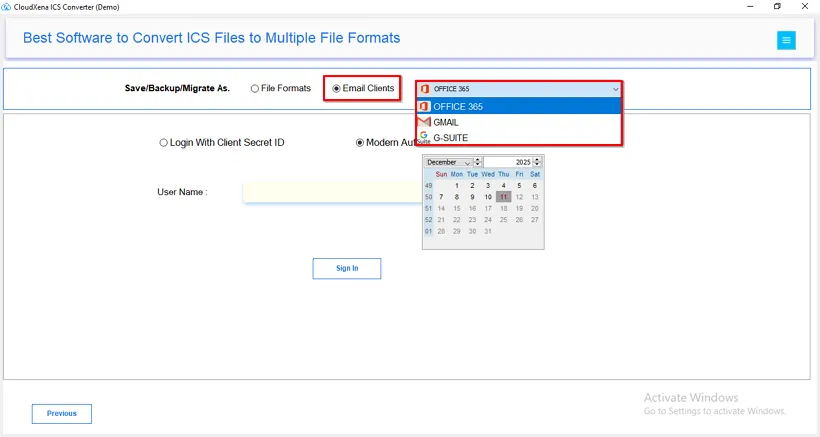
7: Once you select Office 365, you need one option to sign in:
- Client Secret ID Login
- Modern Authentication
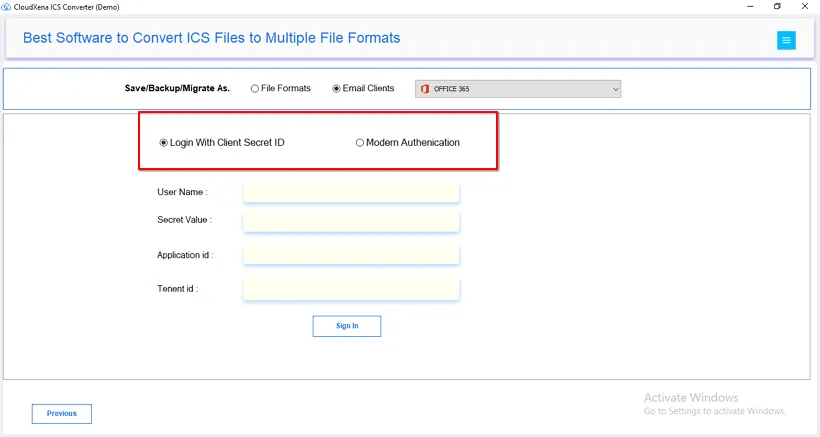
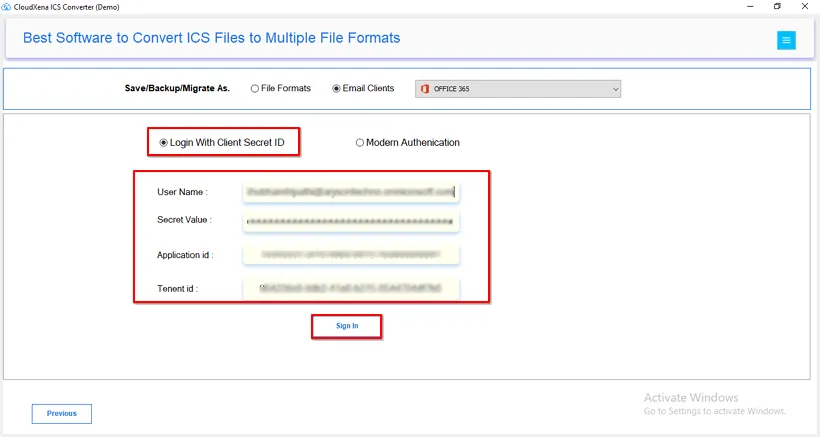
8: To log in using the Client Secret ID, you must enter the User Name, Secret Value, Application ID, and Tenant ID. Then, click Sign In.
9: For Modern Authentication, just enter your Username and then click Sign In.
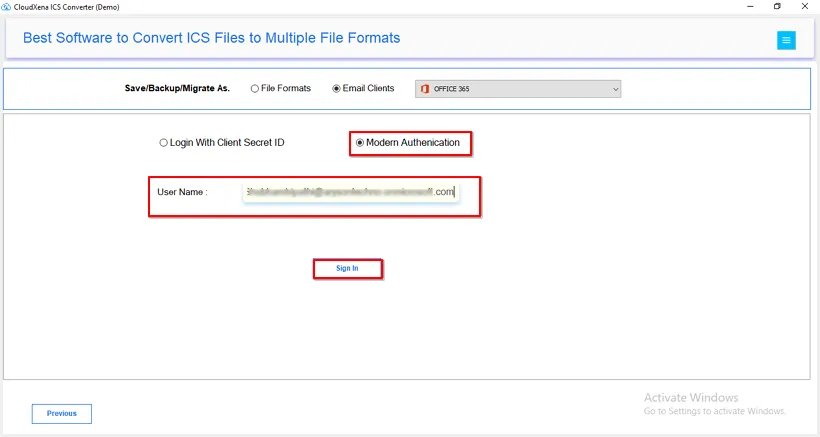
Note: You can also use the Modern Authentication sign-in method for both Gmail and G Suite.
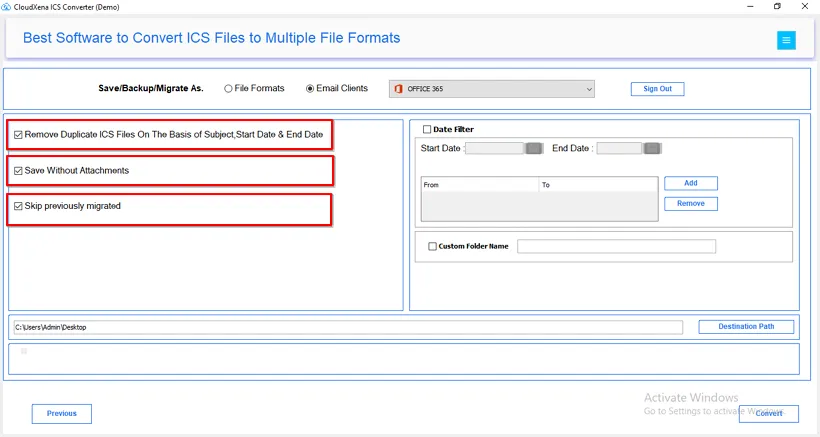
10:Now, apply the filters to customize your migration. These filters clean your calendar data before uploading to the new account:
- Remove Duplicate ICS Files: Stops repeated events from being uploaded.
- Save Without Attachments: Leaves out any files attached to your meetings.
- Skip previously migrated: Ignores events you already moved in a past attempt.
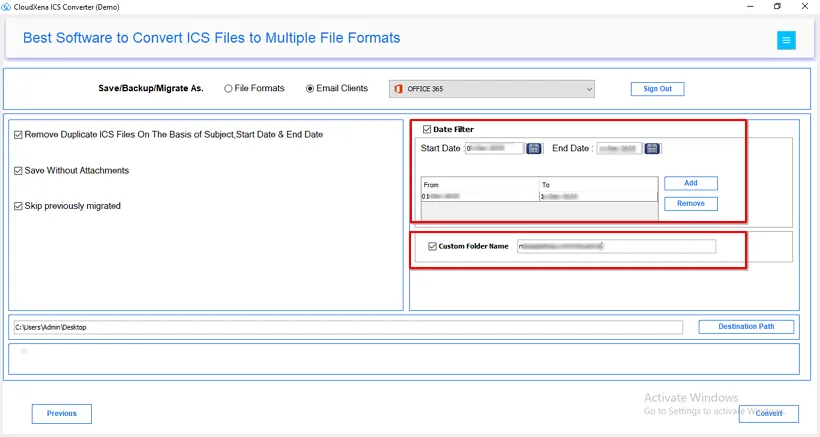
11:These last two settings decide what calendar items you upload and where the migration log will be saved:
- Date Filter: You choose a start and end date. Only events happening between those dates will be uploaded to your new account.
- Custom Folder Name: Give the folder a name so you can quickly find the saved file on your PC.
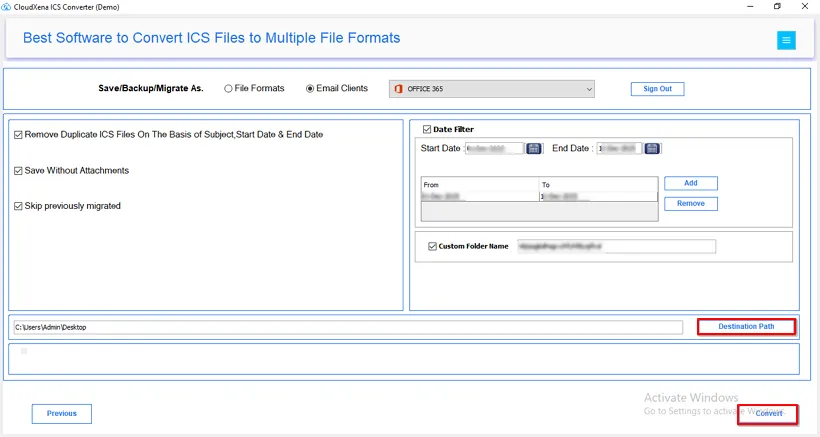
12: Now, just select the Destination Path and click Convert to start the migration.
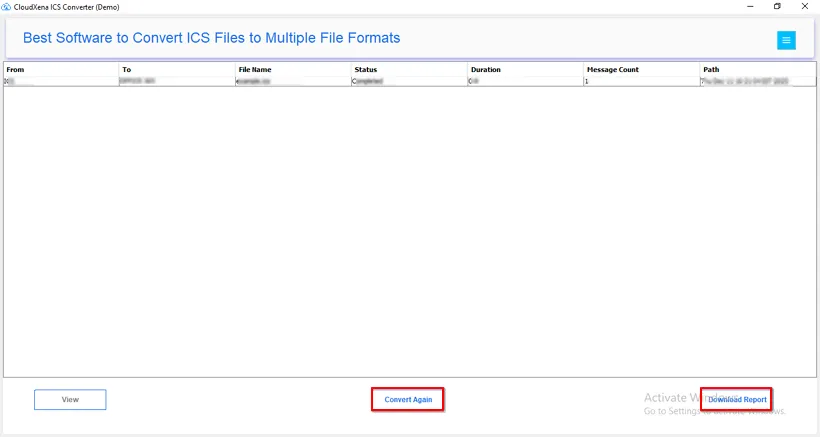
13: When the conversion is done, a success message appears. Download the Report or click Convert Again if necessary.
User Interface
Once you launch the CloudXena ICS File Converter for Windows, you will see the following interface.